F Familienplaner

Family planning starts with a prompt

Familienplaner

In the Agent menu, write in everyday language what needs to be organized, clarified, or changed across the plan. The inbox uses the same logic for individual notes: there you review or complete the suggestion for one specific thing. Forms stay available when you want to edit individual details yourself.

Agent first Review results Photo, audio, text Keep days realistic Forms as fallback
Familienplaner agent with visible work steps

Step 1

Ask the agent first.

Familienplaner should not start by asking which form you need to open. For free-form or cross-plan requests, open the Agent menu and write a sentence: what should happen, for whom, by when, and which limits matter? That becomes structured changes the family can review calmly.

Morning / Hallway

One request replaces five places to search.

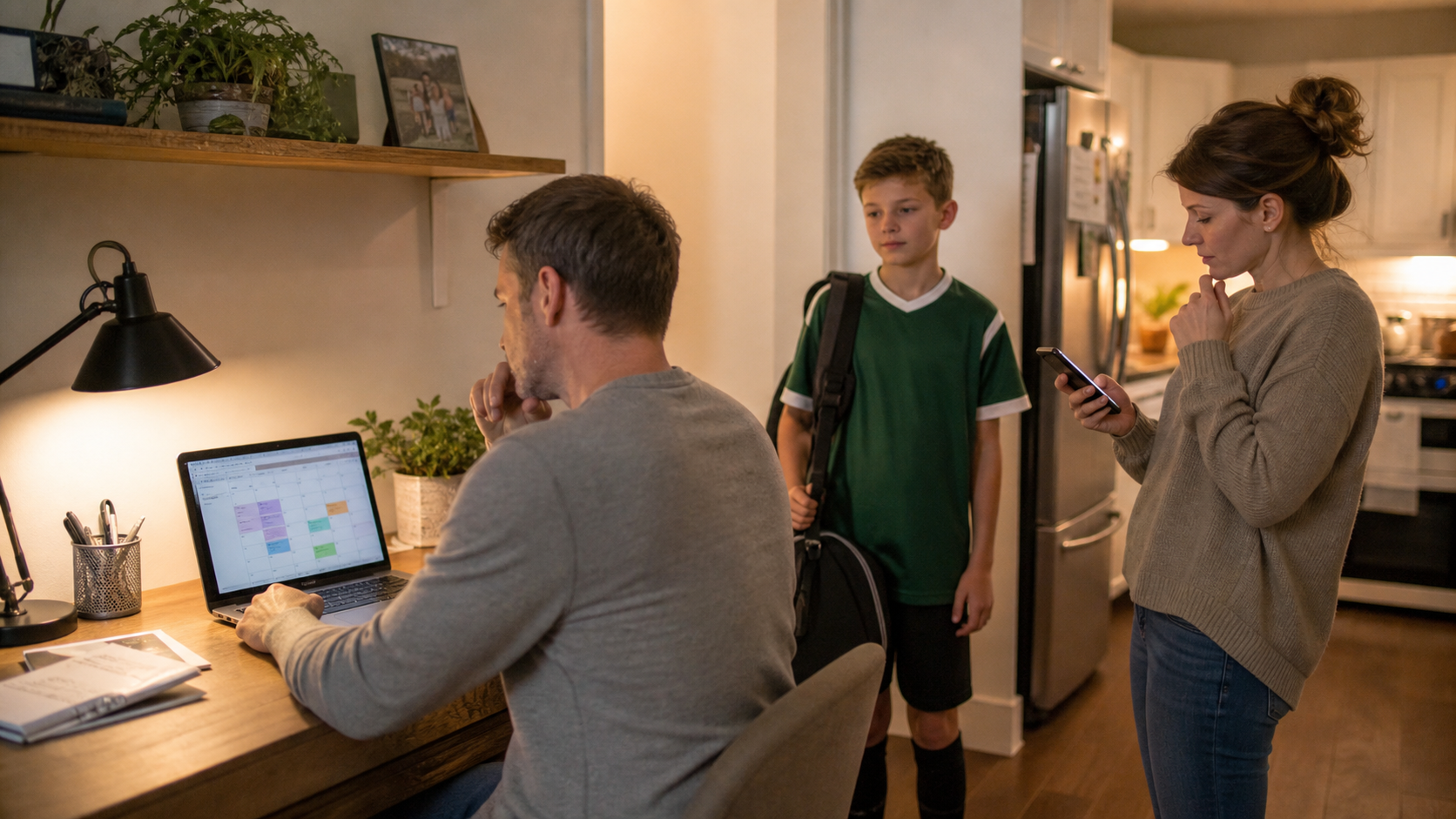
Jonas holds the phone while the kids look for shoes. Instead of finding the right screen first, he writes what the morning needs in the Agent menu. The agent organizes that into tasks, questions, and appointments. The family then sees what belongs in the plan.

Good prompts name the goal, time span, people, source material, and limits.

Family in the hallway using the Familienplaner agent while leaving home

Prompt instead of form

This is what a useful first prompt sounds like.

A prompt can be incomplete. Clear goals, time spans, and limits make it easier for the agent to break the request into useful steps.

Start prompt

Replan our Wednesday. Include school, swimming, and the rule that Lina should only carry one extra task.

The agent creates actions, warnings, and questions that you can review step by step.

Chapter 1 app screens

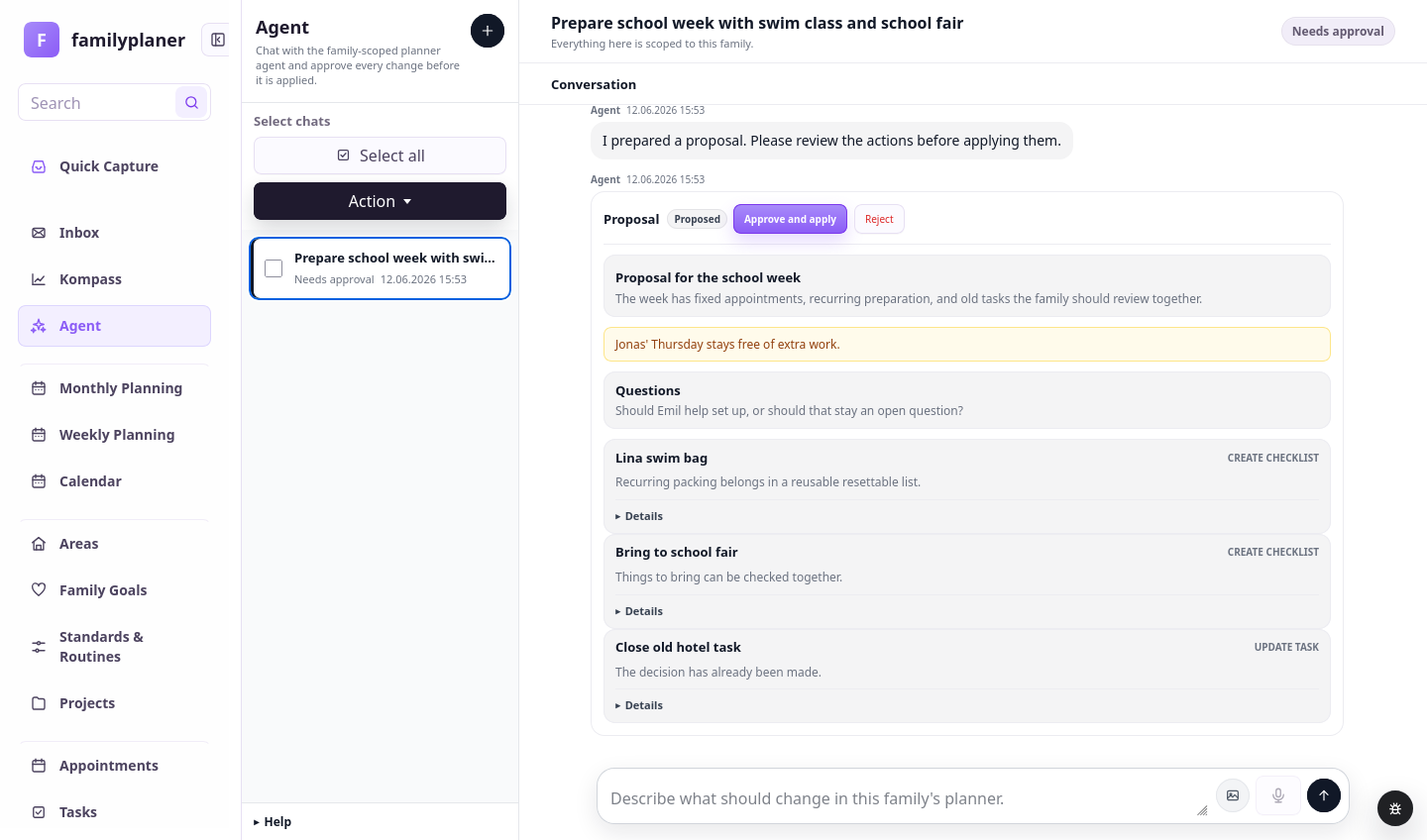
The agent makes work steps visible.

Every action stays visible. You see what should be created, changed, or asked, and decide what is actually correct.

Agent screenshot with structured steps for the school week

1 / Agent

A prompt becomes structured.

The agent splits the request into individual actions.

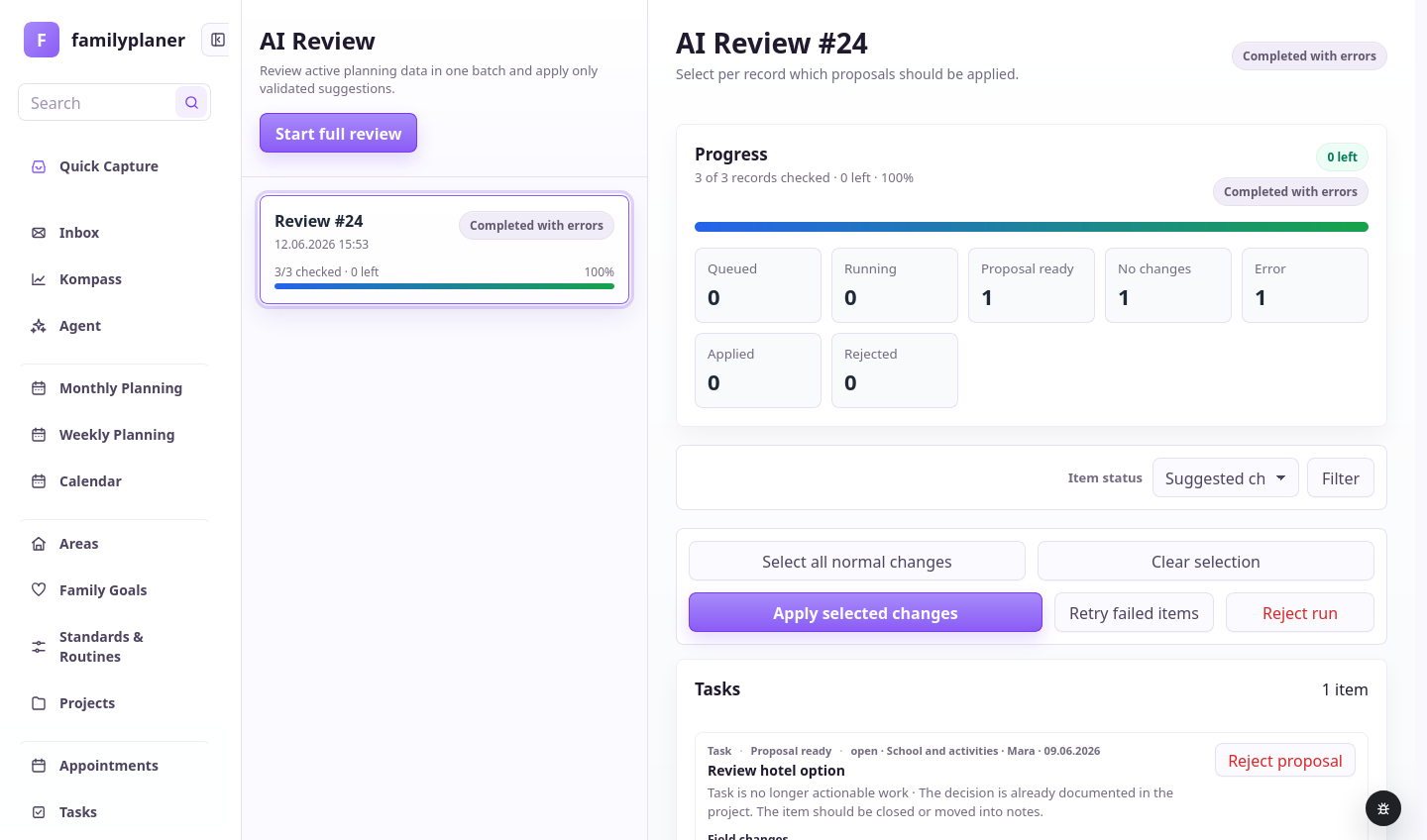
Screenshot with selectable changes

2 / Selection

Changes stay selectable.

The family keeps only what it understands and wants.

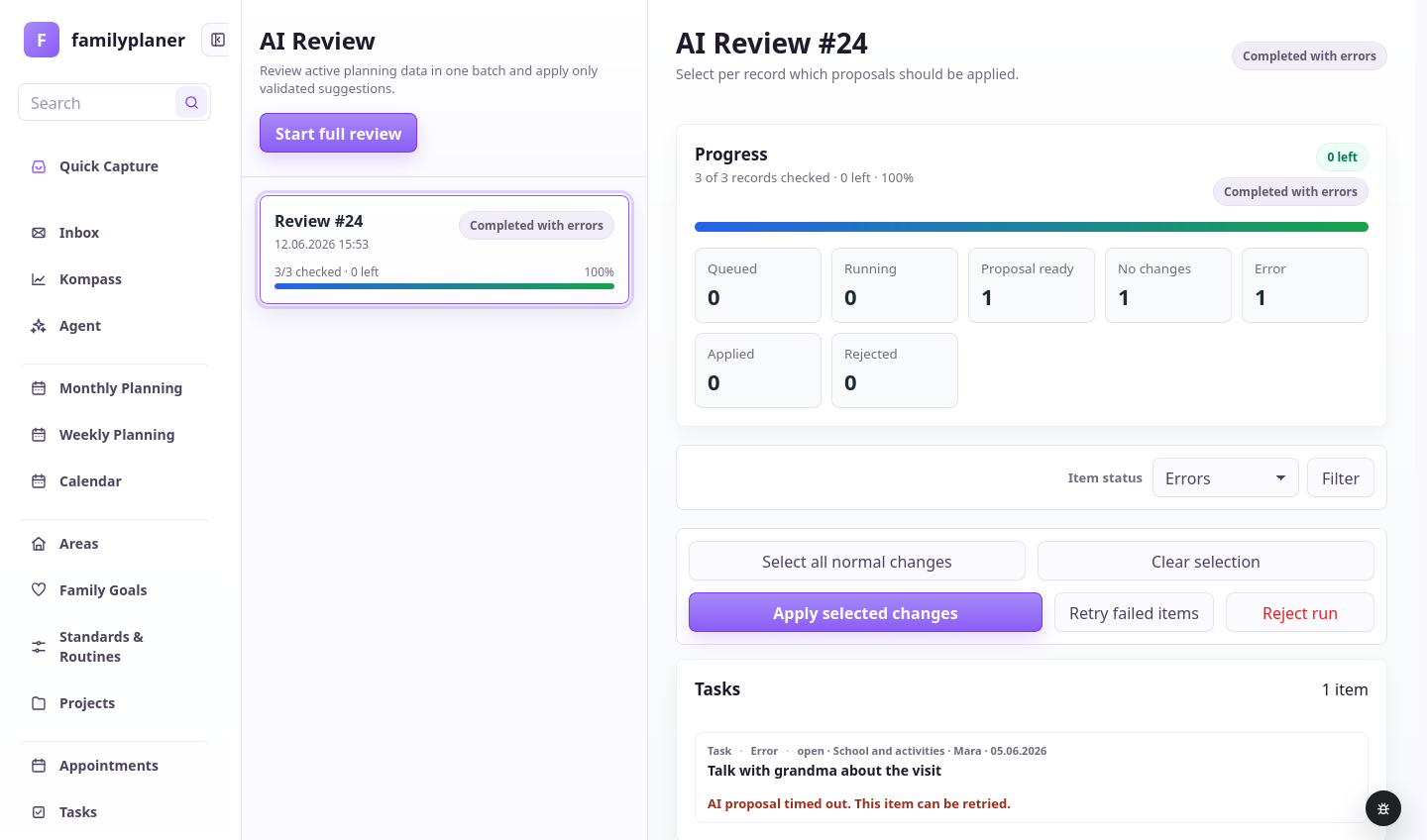
Screenshot with a failed item and retry option

3 / Errors

Uncertainty stays visible.

Questions, warnings, and errors do not disappear in the background.

Step 2

Capture first, sort later.

Family information often appears while life is moving: a poster, a photo, a voice note, a short text note, or a class-chat message. Quick Capture is the easy way to get those things into the app. With photos, the app reads the text in the image. With audio, speech is turned into text so you do not have to type.

After school / Hallway

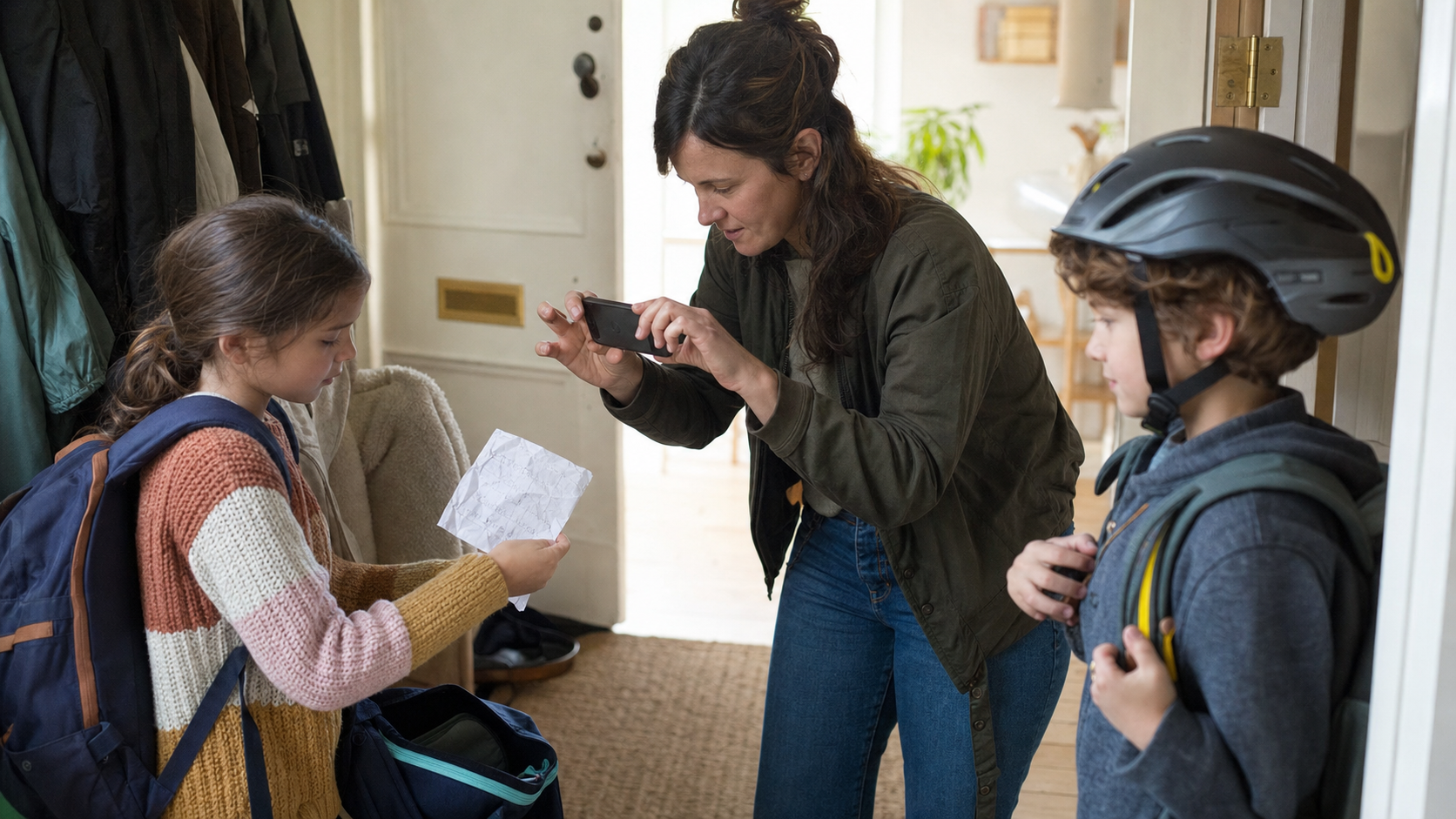
The note no longer disappears in the backpack.

Emil pulls the crumpled note from his bag. Mara photographs it, Jonas later dictates a reminder in the car, and Lina adds a short note. The family can still edit the recognized or transcribed text. After that, Quick Capture derives whether a project, task, appointment, or open question is needed.

Raw material is allowed. The plan comes after.

Child showing a school note in the hallway while a parent captures it with a phone

Prompt for found material

Write only what you know right now.

Photos do not need an extra prompt: Quick Capture reads the text in the image. Audio is turned into text first. You can change, add to, or shorten that text before Quick Capture detects the useful building blocks.

Quick find

Emil has a school festival next week and needs to bring a chocolate cake. I also need to find the cake tin for transport.

Quick Capture recognizes the school festival as the larger topic and creates separate entries for next week's event, the chocolate cake, and finding the cake tin.

Chapter 2 app screens

Quick Capture keeps material visible.

Photos are read, voice notes are transcribed, and short texts can be entered directly.

Inbox screenshot with photo entries

1 / Inbox

One photo is enough to start.

The inbox collects finds before they become planning.

Inbox screenshot with sorted entries

2 / Sort

Sorting happens later.

Audio and text finds can also be accepted, archived, or kept as questions later.

Open-loop screenshot created from a photo

3 / Question

Unclear material is not forced.

When information is missing, the find stays a question.

Step 3

The inbox collects what will be decided later.

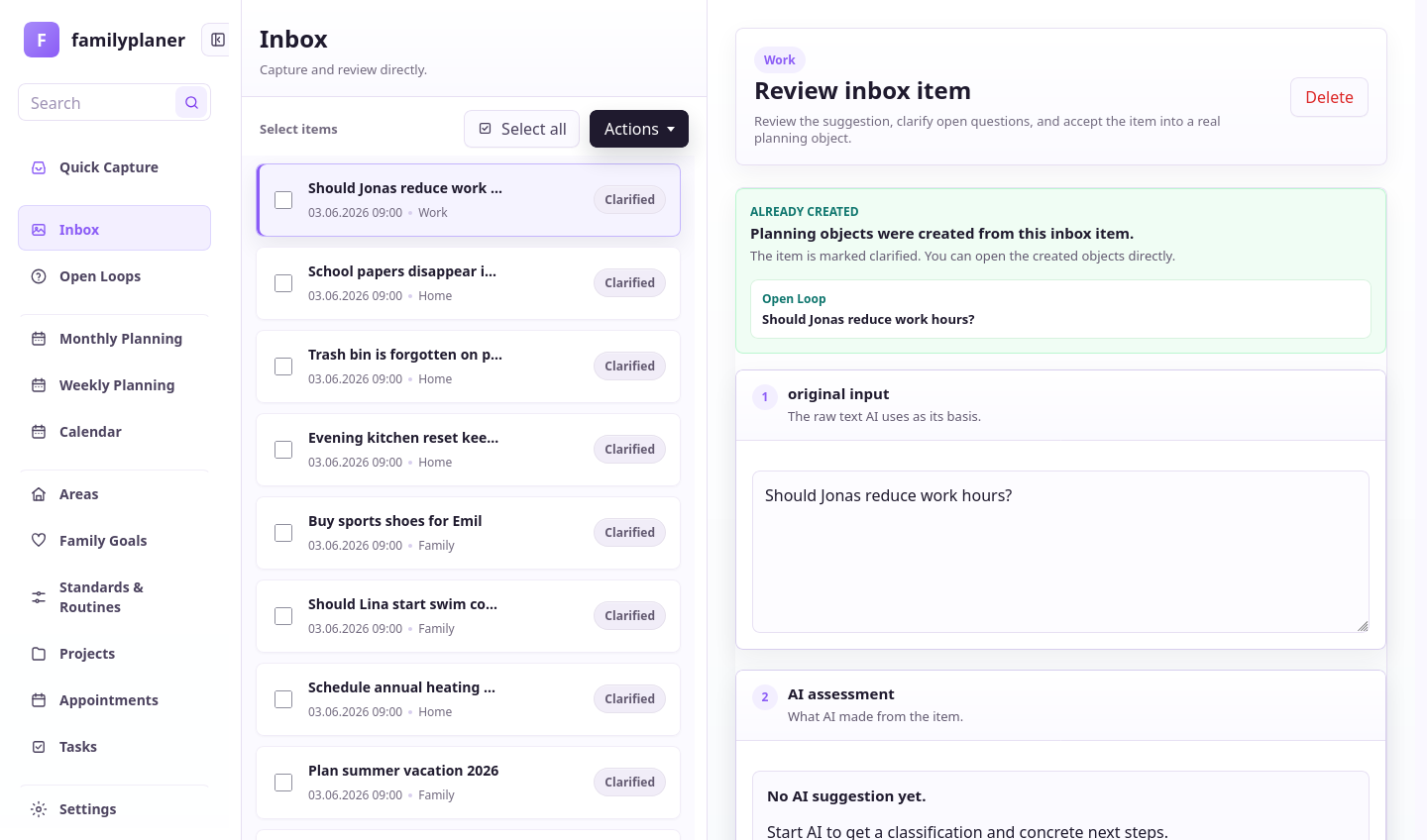
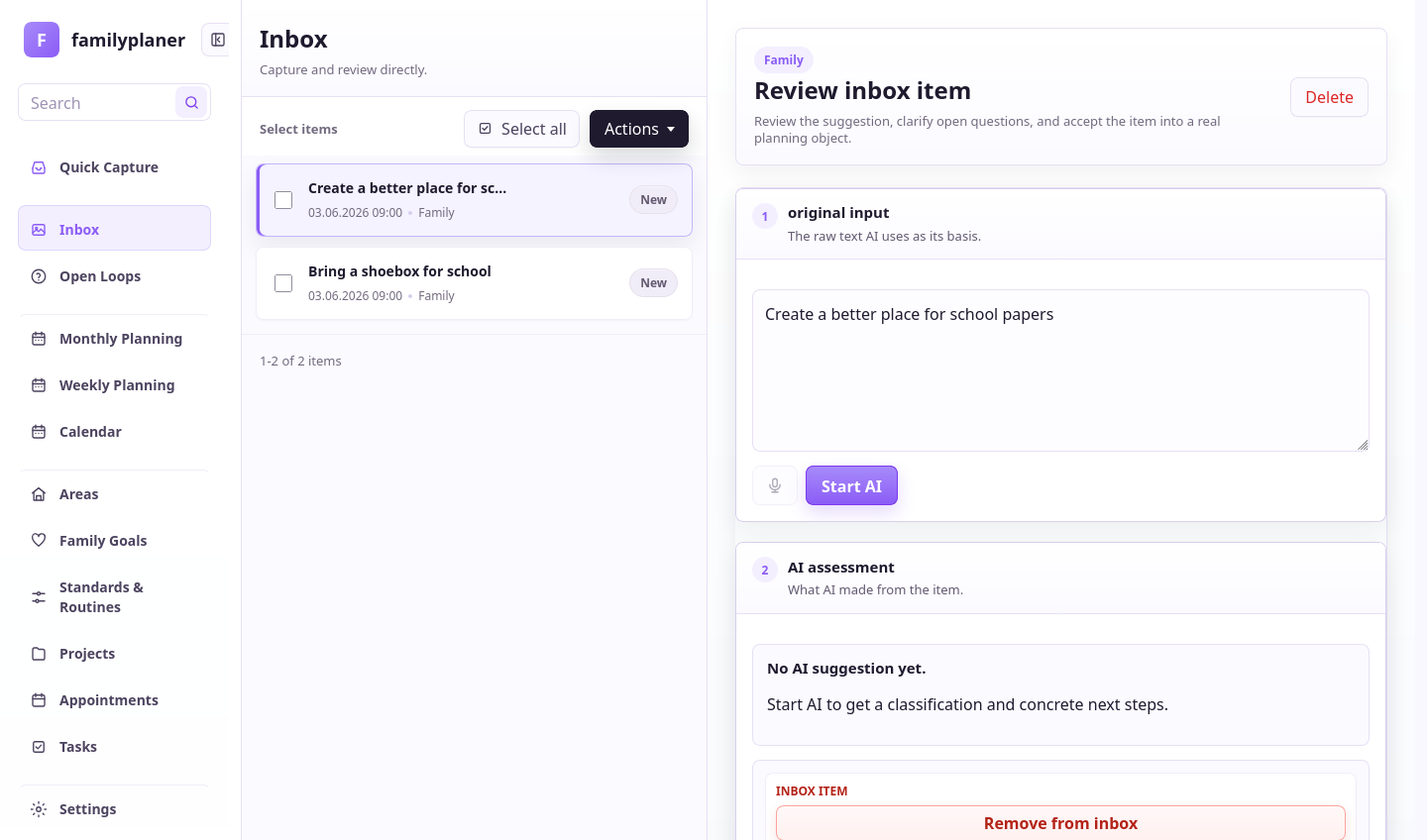
The inbox uses the same detection as the agent, but always for one individual note. A new note, reminder, or photo is sorted automatically. Then you review the suggestion, add missing information, or leave the entry open.

Playground / Bench

What comes to mind on the go does not get lost.

Lina remembers a materials list while Emil parks the scooter. Jonas opens the inbox and sees the suggestion for that one note. The family does not have to carry something in memory just because now is not the time to complete it.

Every thought is captured, even before it is clear what it should become.

Family checking the shared inbox on a playground bench

Automatic sorting

The inbox sorts without an extra prompt.

As soon as a new note reaches the inbox, Familienplaner checks whether it is more likely a task, an appointment, an open question, or an archive entry. Unlike the Agent menu, this is not about the whole week; it is about this one entry.

New inbox entry

New entries are read automatically: a photo of a school letter, a voice note from the way home, or a short everyday reminder.

The inbox sorts clear entries. If something is missing, you continue editing the suggestion directly on that entry.

Chapter 3 app screens

The inbox separates collecting from deciding.

New notes stay visible without clogging the day plan.

Inbox screenshot with several entries

1 / Inbox

New things have one place.

The family sees what still needs attention.

Inbox screenshot with status groups

2 / Status

Sorting leaves a trail.

Open, accepted, and archived stay distinct.

Open-loop screenshot from an inbox entry

3 / Open

Doubt stays allowed.

Unclear items do not become fake tasks.

Step 4

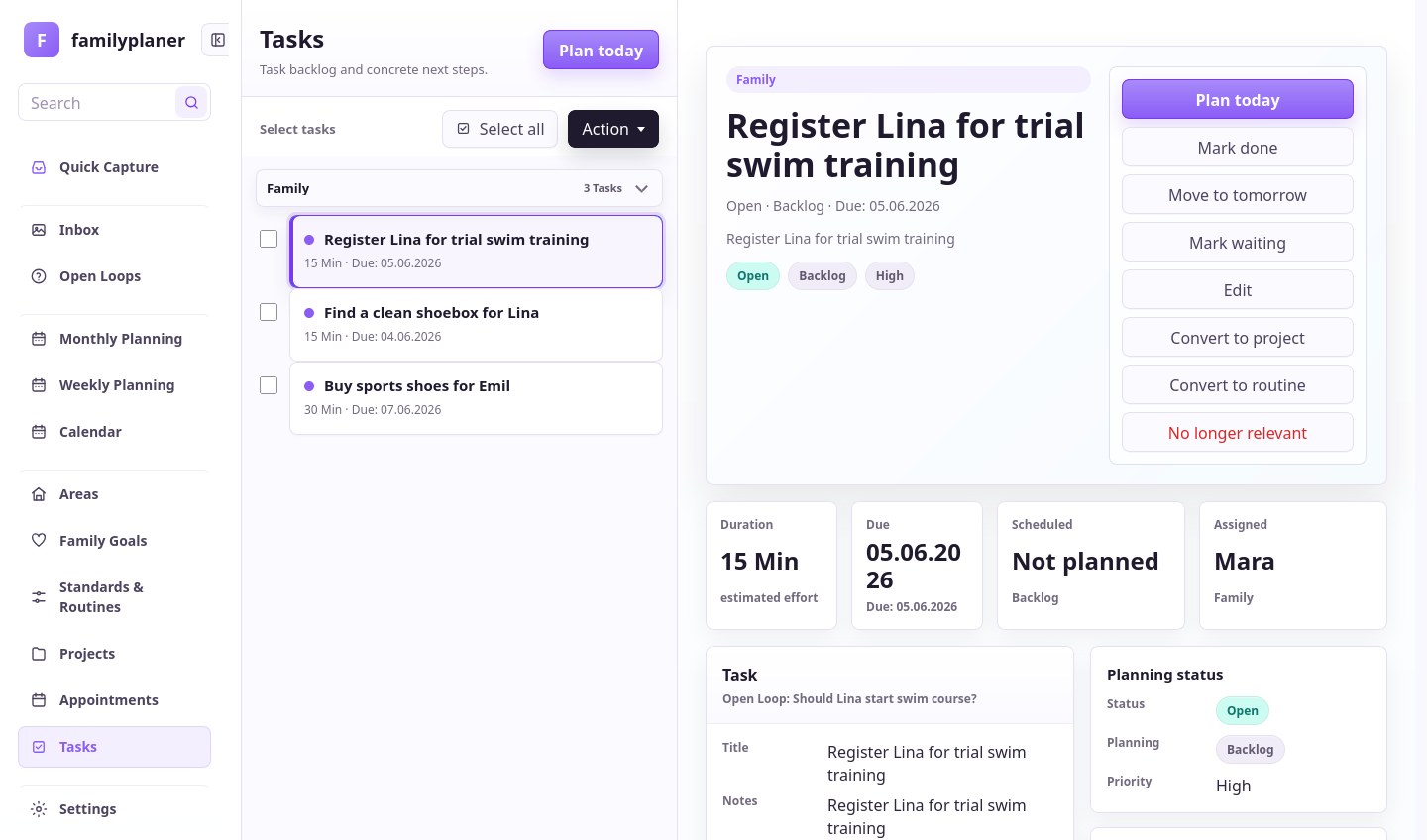
Tasks are concrete next steps.

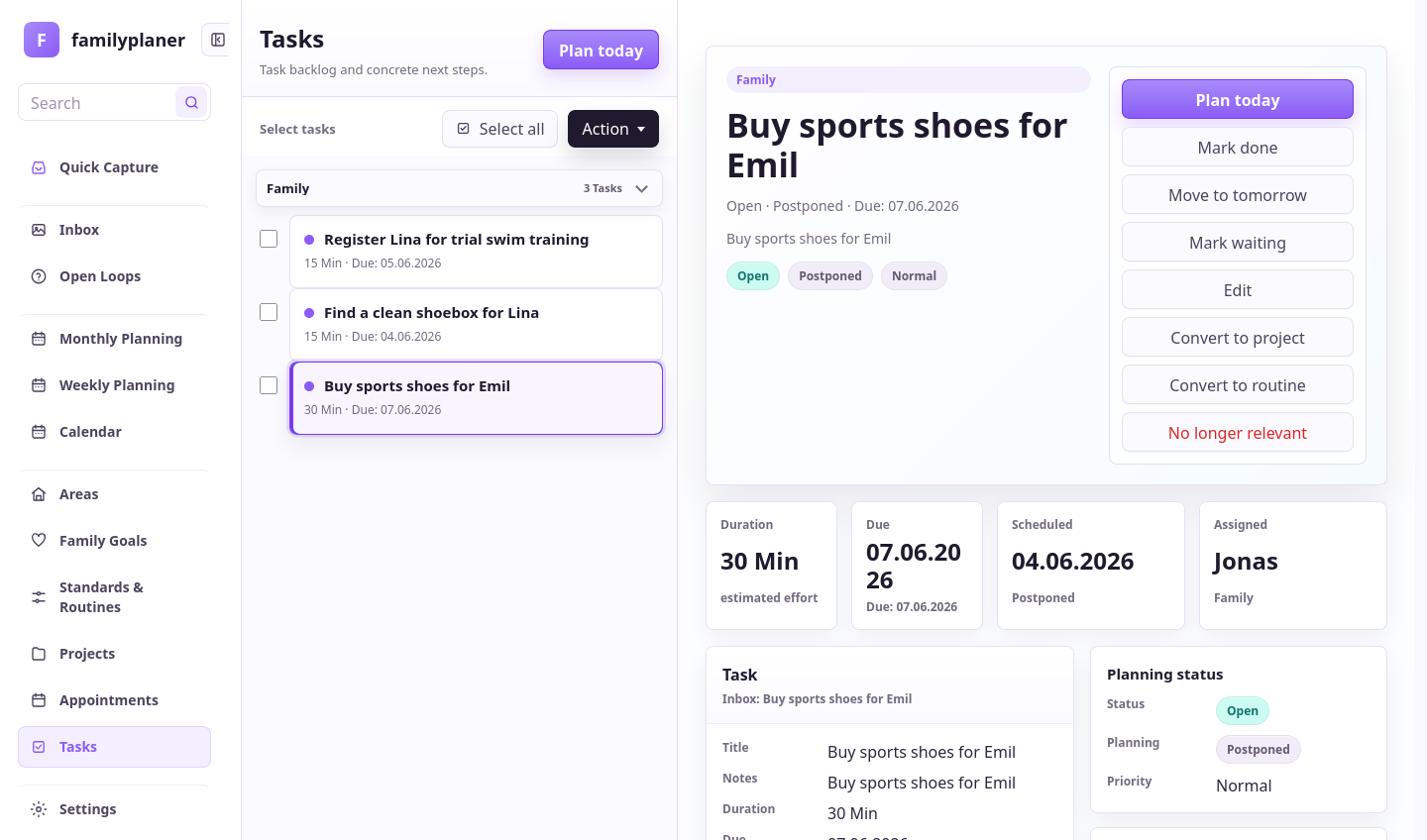
A task is more than a keyword. It needs a responsible person, enough context, and often an estimated duration. The agent can split vague requests into steps, assign work, postpone items, or suggest old tasks for cleanup.

School entrance / Sidewalk

"Don't forget" becomes a task.

Emil points to the sports shoes in his bag. Mara quickly dictates what needs to happen. The agent proposes a task with responsibility and timing instead of leaving the reminder in one person's head.

A task is actionable when it is clear who does what next.

Family captures a sports-bag task outside school with Familienplaner

Complete an inbox entry

Add the missing information.

Sometimes the inbox already holds the note, but person, timing, or duration is still missing. Then you add to that entry instead of starting over.

Complete note

For the inbox entry 'check sports shoes': Emil should do this himself this afternoon. Plan 10 minutes and only remind Mara if it is still open tomorrow.

The completed inbox entry becomes a concrete task with owner, duration, and planning.

Chapter 4 app screens

Tasks carry context.

Tasks can be planned, postponed, and reviewed later without losing their context.

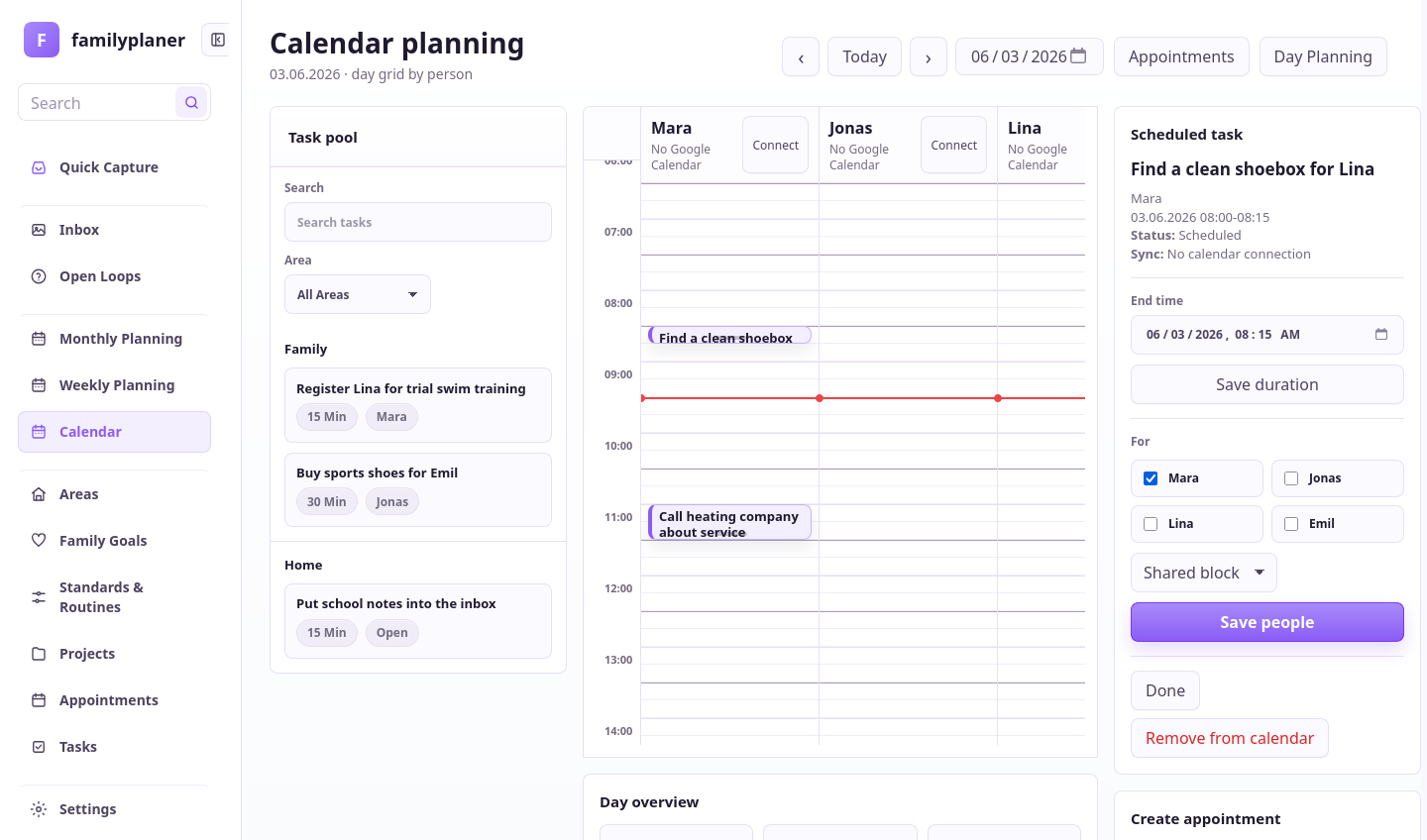
Day planning screenshot with a planned task

1 / Today

Tasks land in the day.

Work becomes a visible block with duration.

Task screenshot with postpone option

2 / Postpone

Postponing is a decision.

Context and responsibility remain even when tomorrow fits better.

Task screenshot with detail information

3 / Detail

Details stay reachable.

The form view is there when a field needs manual editing.

Step 5

Appointments reserve real time.

Appointments are fixed events such as parent night, training, pickup, or a doctor visit. The agent should not only recognize the time, but also account for travel, preparation, and responsibility.

Swimming pool / Noticeboard

A poster is planned, not copied.

Lina points at the course on the board. Jonas photographs the notice and asks whether Wednesday fits. The agent considers existing appointments, travel time, and what needs to happen first.

An appointment is only usable when the path to it is visible too.

Family photographing a pool noticeboard and checking the calendar

Complete an inbox entry

Add time, travel, and preparation.

Sometimes the poster is already in the inbox, but weekday, time, or travel is still missing. Add those details so the note can become a checkable appointment.

Complete poster

For the inbox entry with the swimming-course poster: the course would be Wednesday at 4 p.m. Include 20 minutes of travel and check whether that fits our week.

The completed inbox entry becomes an appointment with travel and preparation or stays visible as an open decision.

Chapter 5 app screens

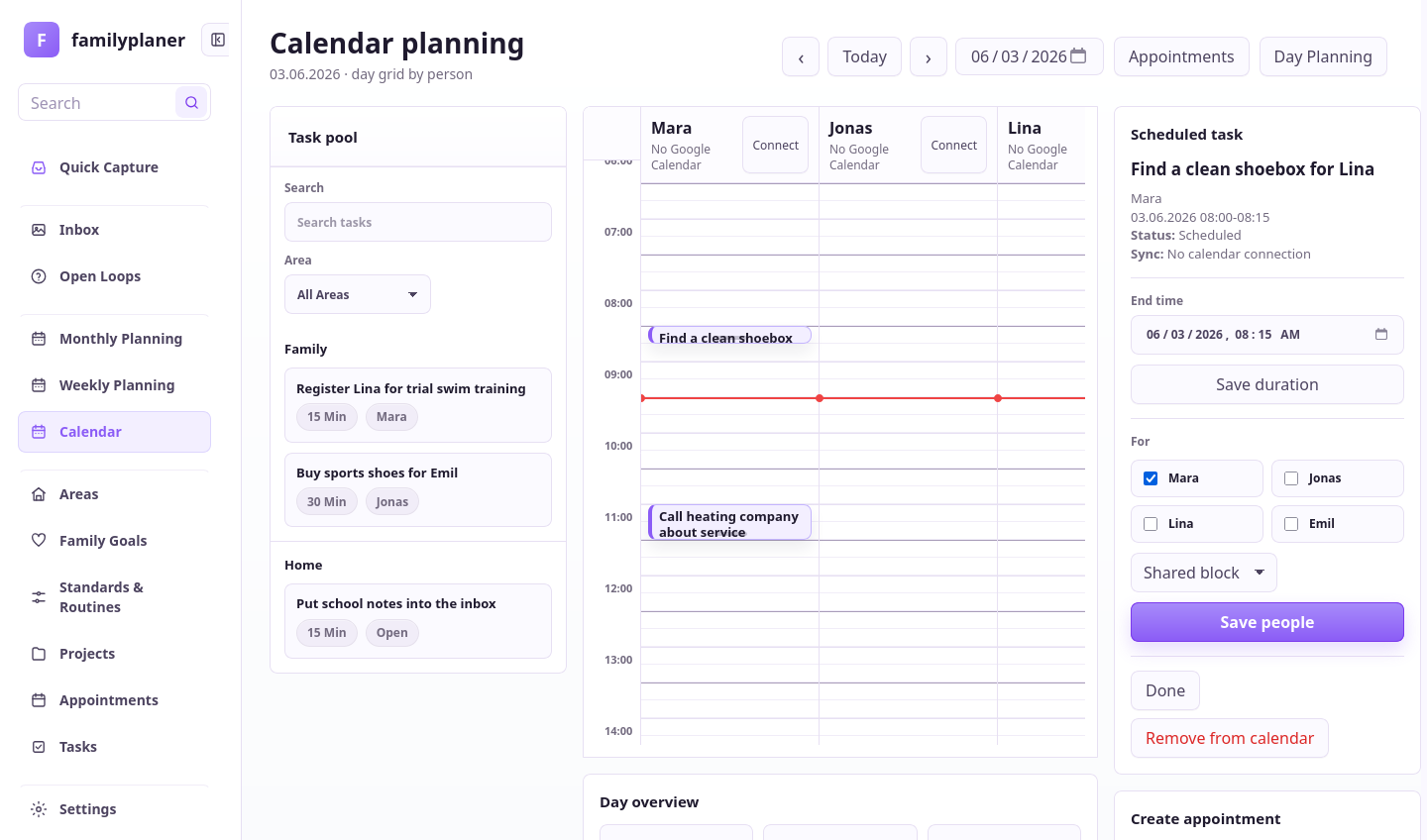
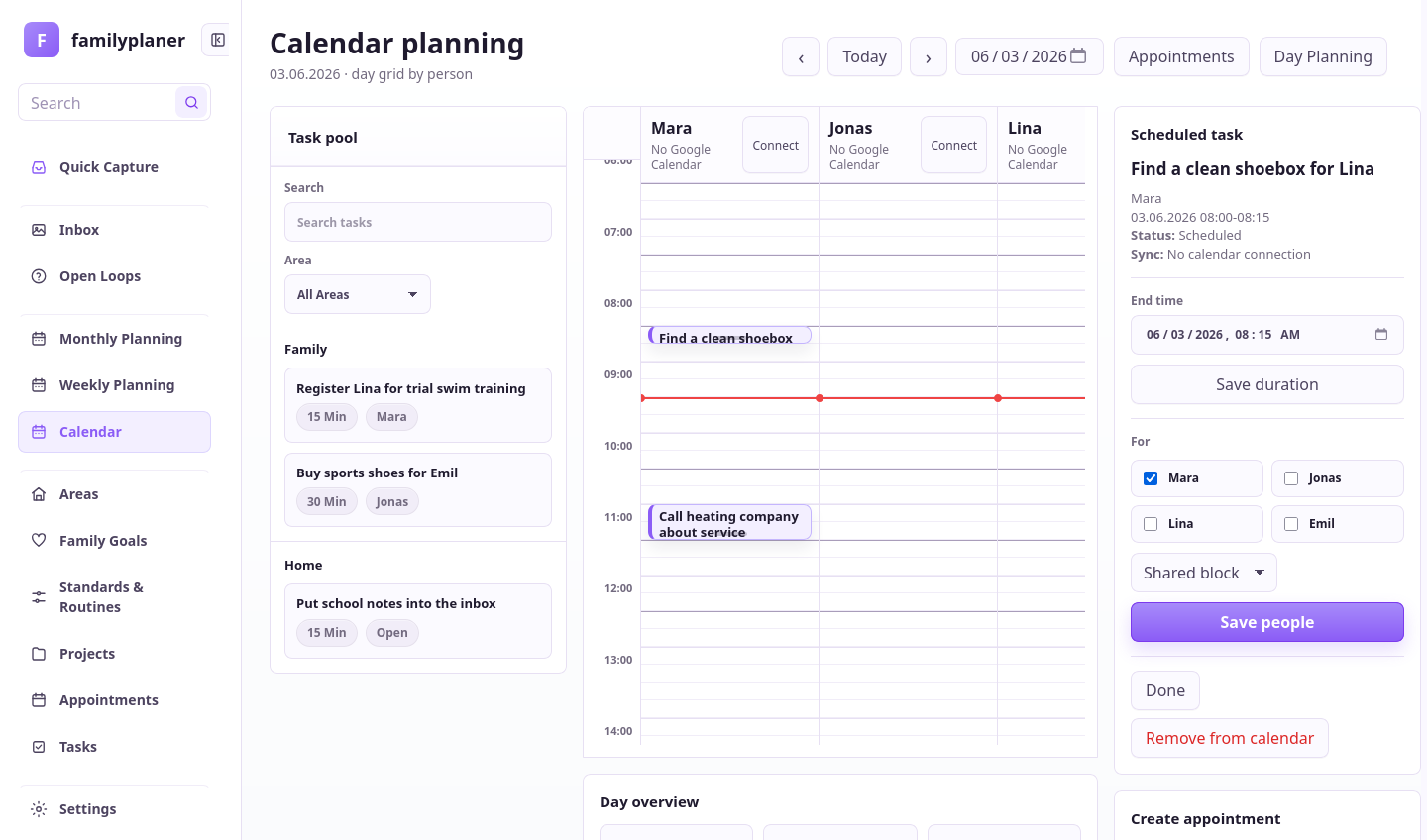
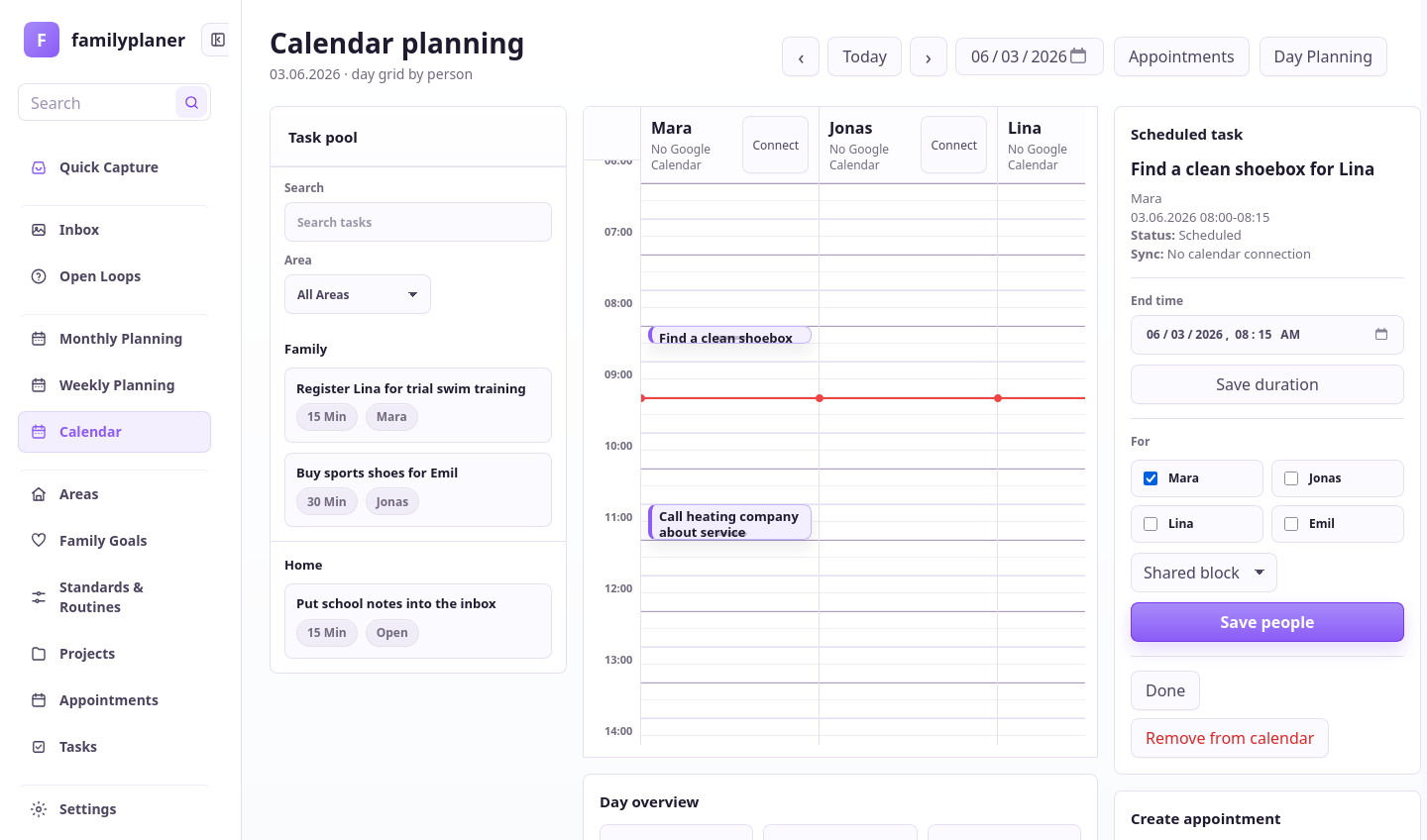
The calendar shows fixed events.

Appointments and travel make clear how much day remains.

Calendar screenshot with appointments

1 / Calendar

Appointments reserve time.

Fixed events sit beside tasks.

Calendar screenshot with a planned block

2 / Block

Preparation gets space.

Decisions and travel can appear as their own blocks.

Calendar screenshot with day capacity

3 / Capacity

Time pressure becomes visible.

The plan shows whether more work can fit.

Step 6

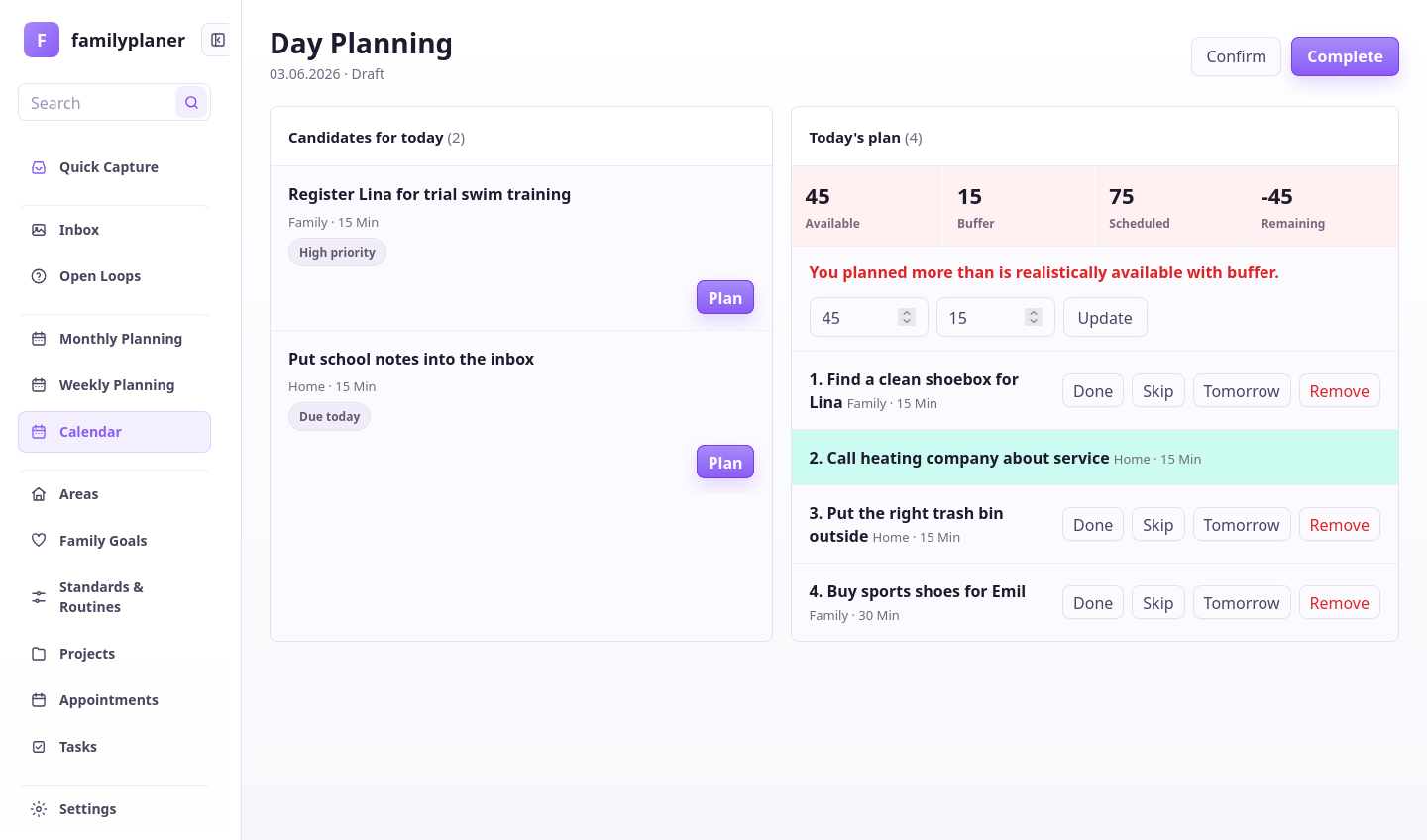
The day plan turns wishes into a carryable day.

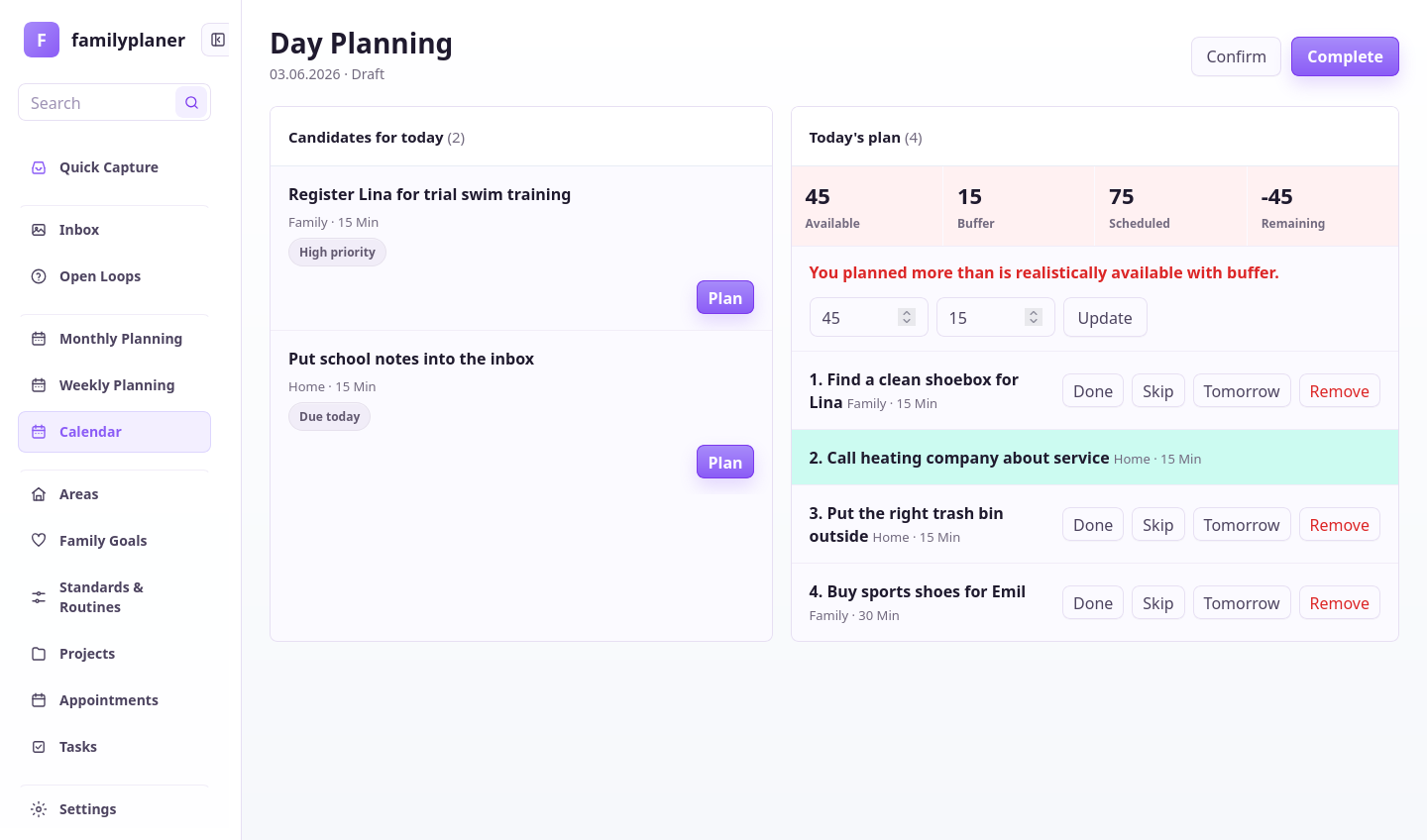
A day plan does not only list what matters. It shows what fits today with school, work, travel, energy, and children. The agent can shrink an overloaded day, move tasks, and leave questions unresolved.

Morning / Car

The day gets smaller before departure.

The family is almost in the car when Mara sees too much planned. She asks the agent for a realistic version. An overloaded plan becomes a selection the family can actually do today.

Too much work is planning information, not personal failure.

Family adjusting the day plan in the car with Familienplaner

Prompt for capacity

Ask the agent to limit the day.

Say what is fixed and which tasks can move without causing trouble.

Make the day realistic

Make tomorrow realistic. School and the doctor appointment are fixed. Move anything that is not urgent and leave at most one kid-owned task per child.

The agent proposes a smaller day plan and marks what moved.

Chapter 6 app screens

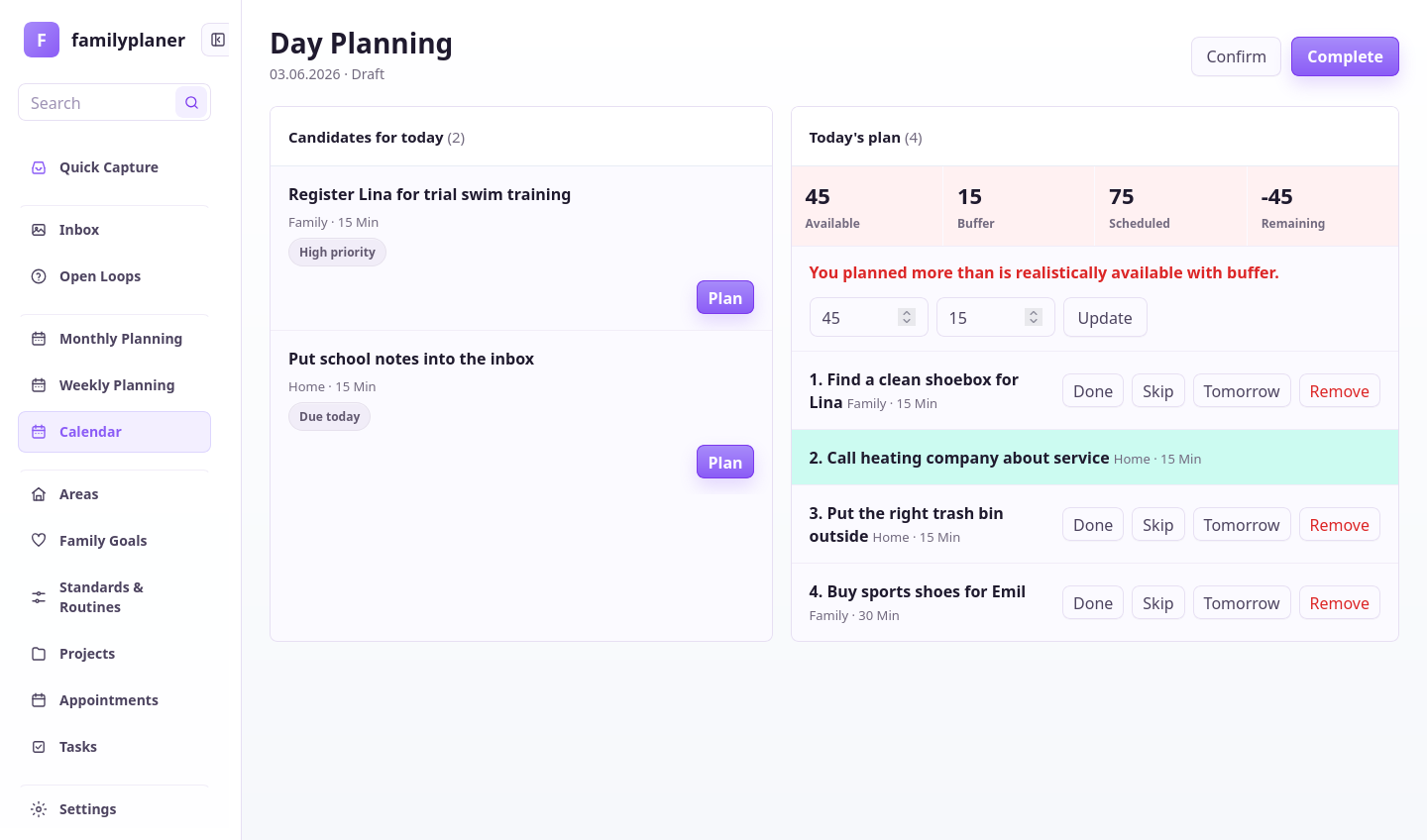
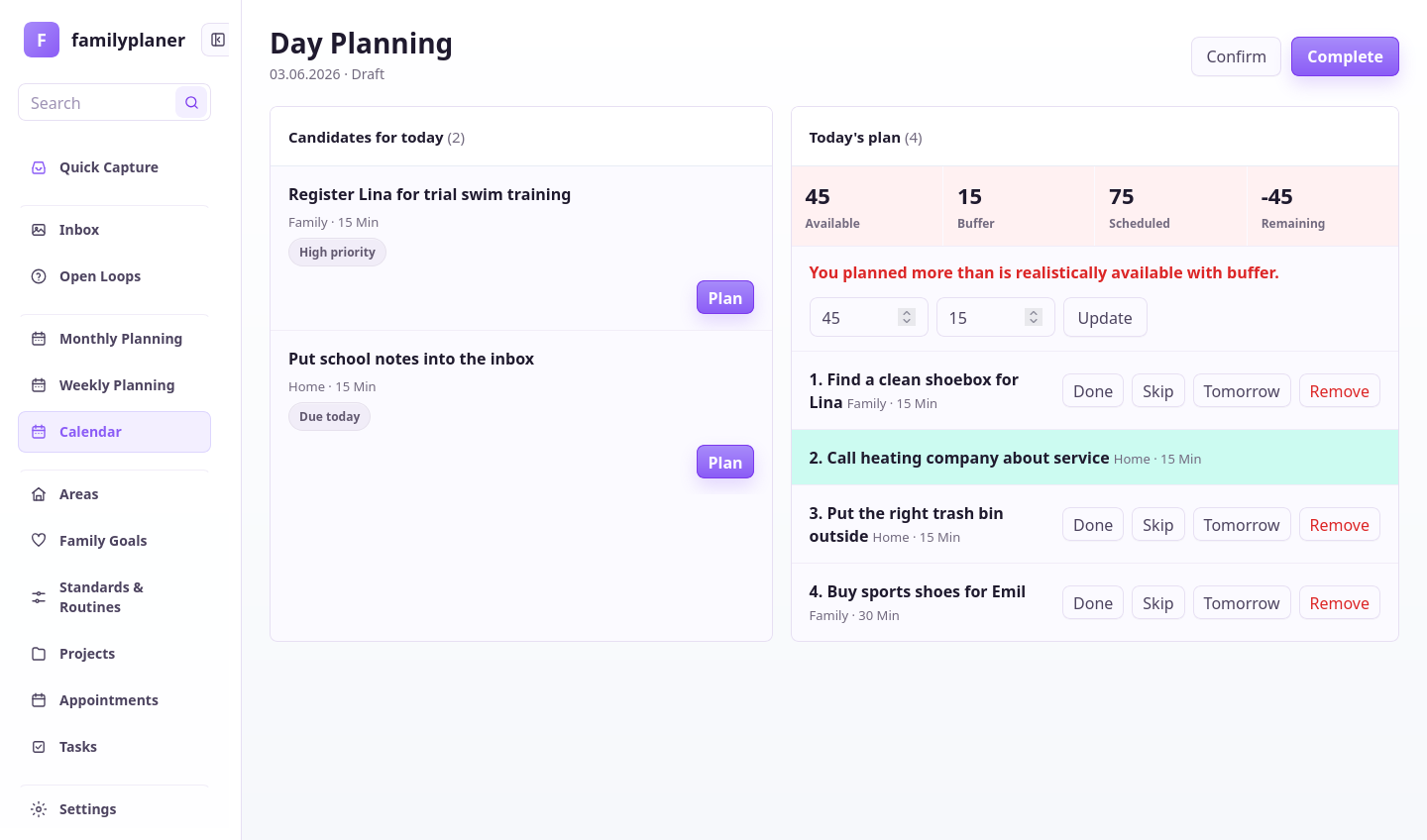
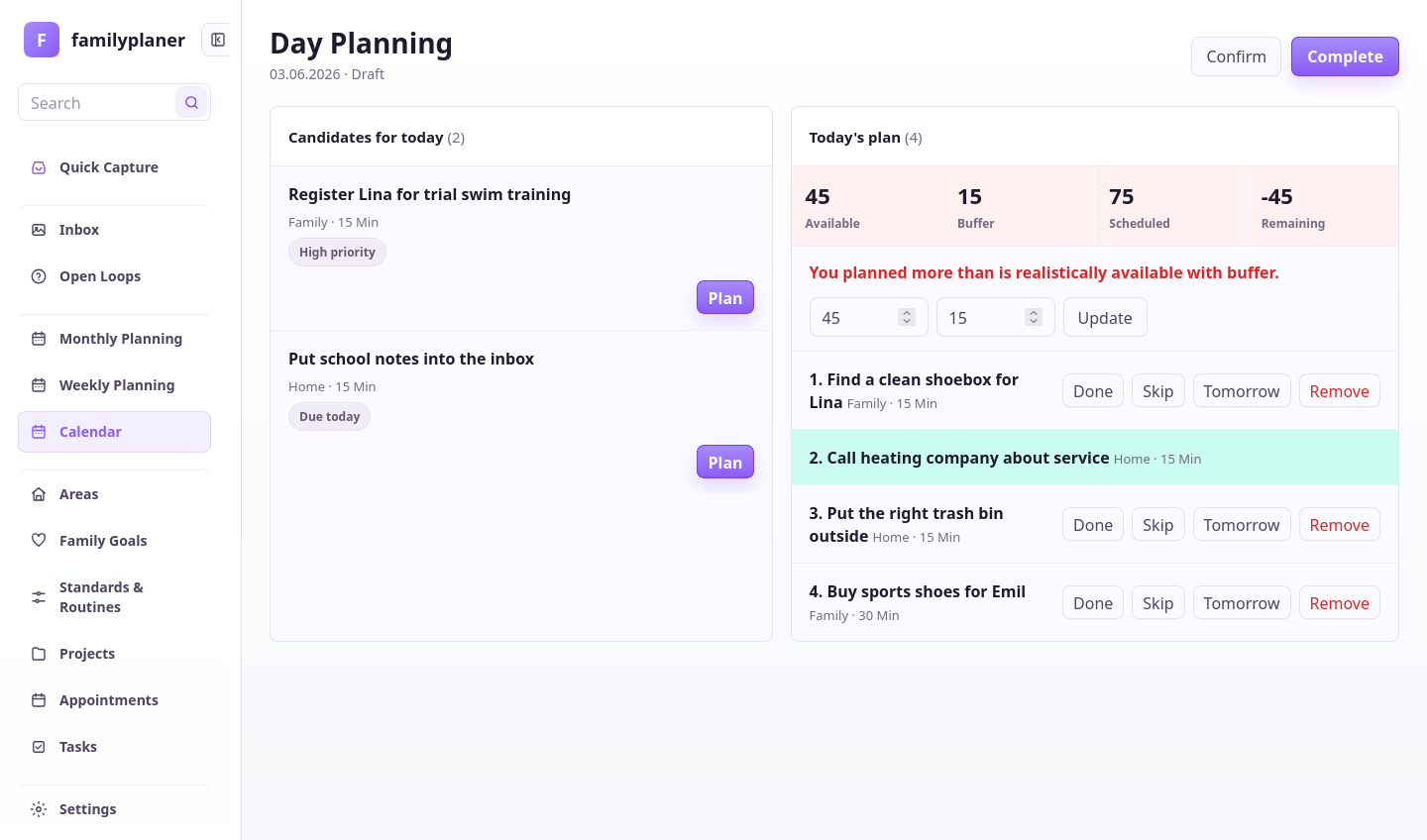
Day planning shows overload early.

Duration, responsibility, and fixed appointments show whether the day fits.

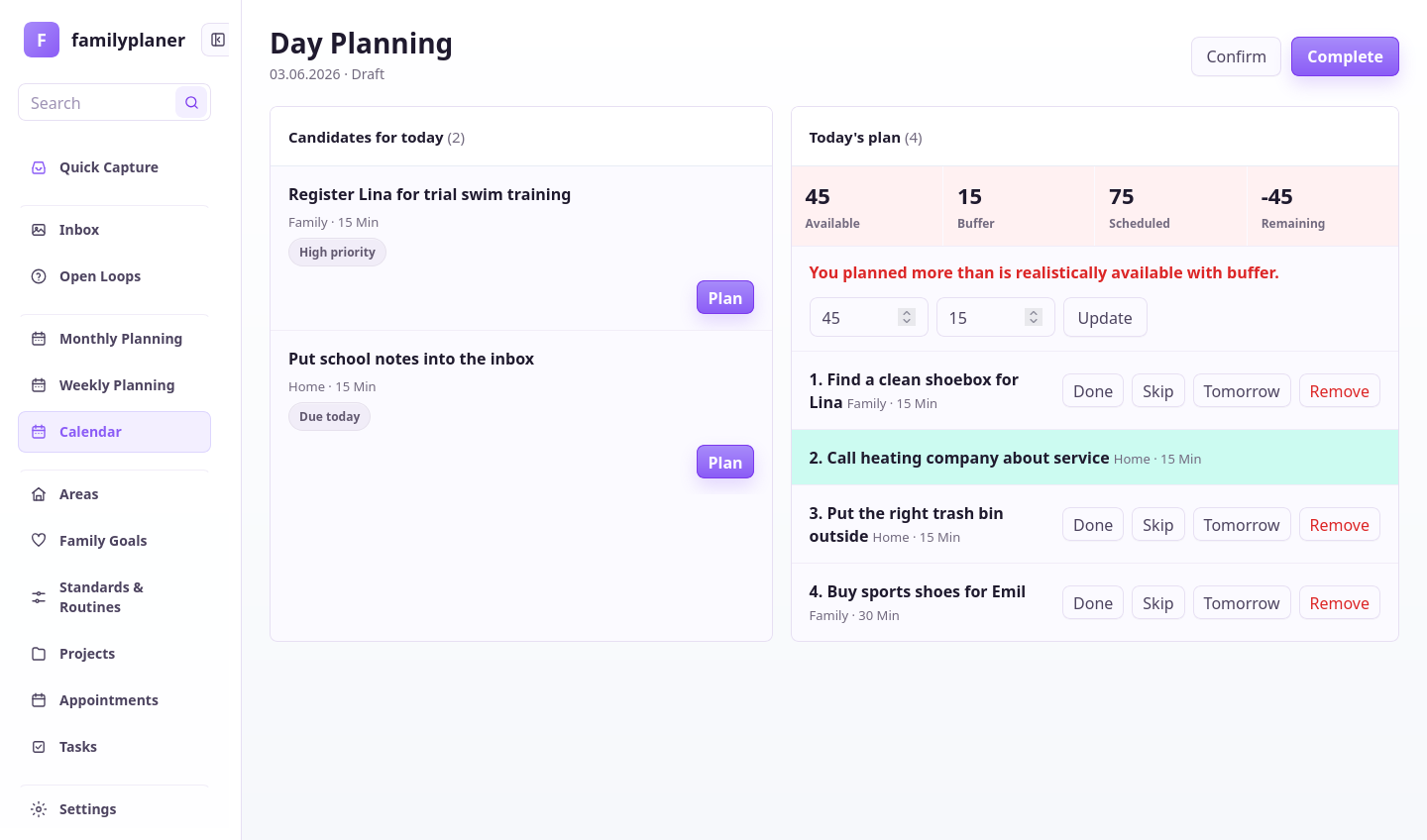
Day planning screenshot with overload

1 / Overload

Too much becomes visible.

The plan shows when scheduled minutes do not fit.

Day planning screenshot with reduced morning check

2 / Morning check

The family chooses.

The morning check helps shrink the day deliberately.

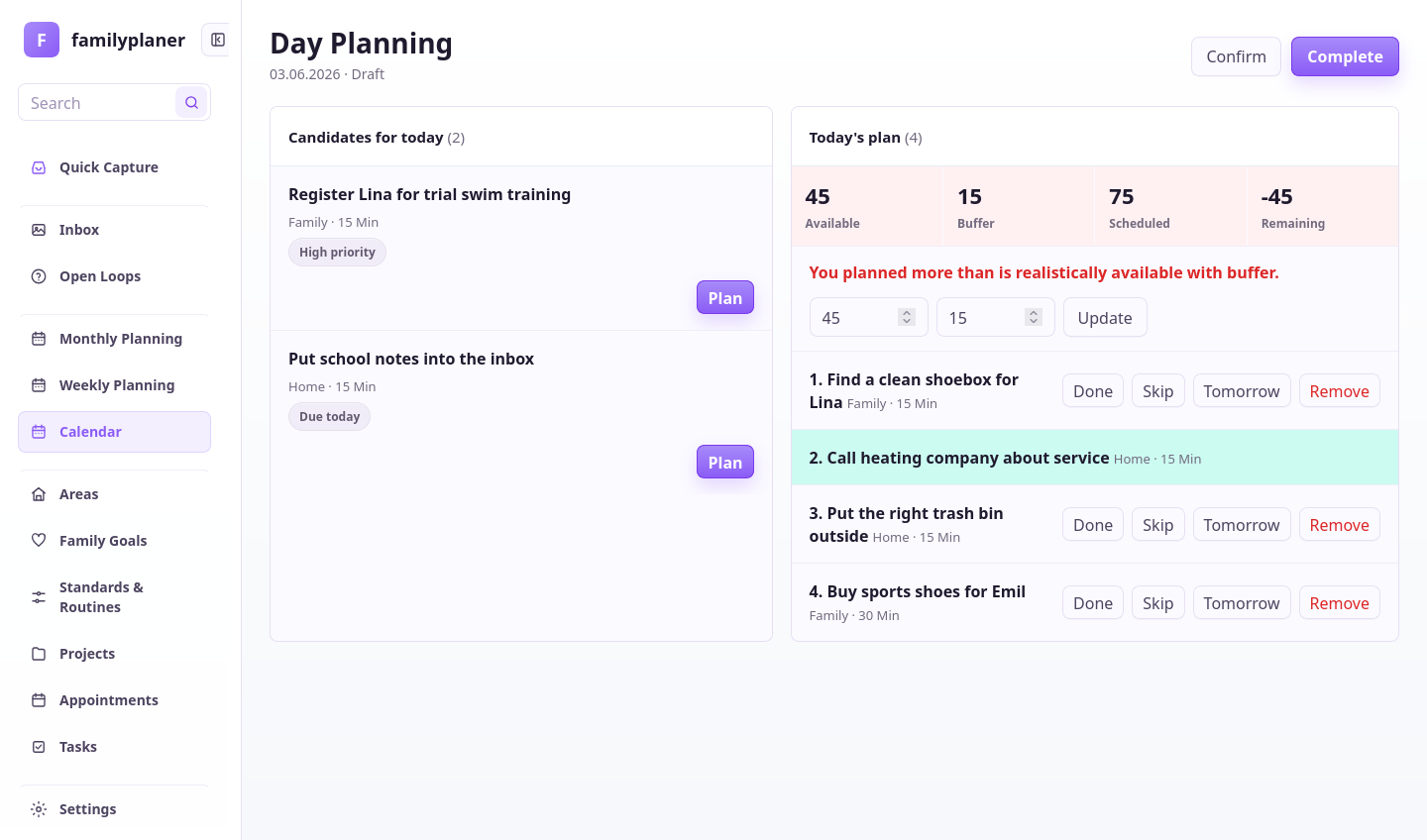
Day review screenshot with sorted tasks

3 / Review

Leftovers get sorted.

Unfinished work is moved, returned, or dropped.

Step 7

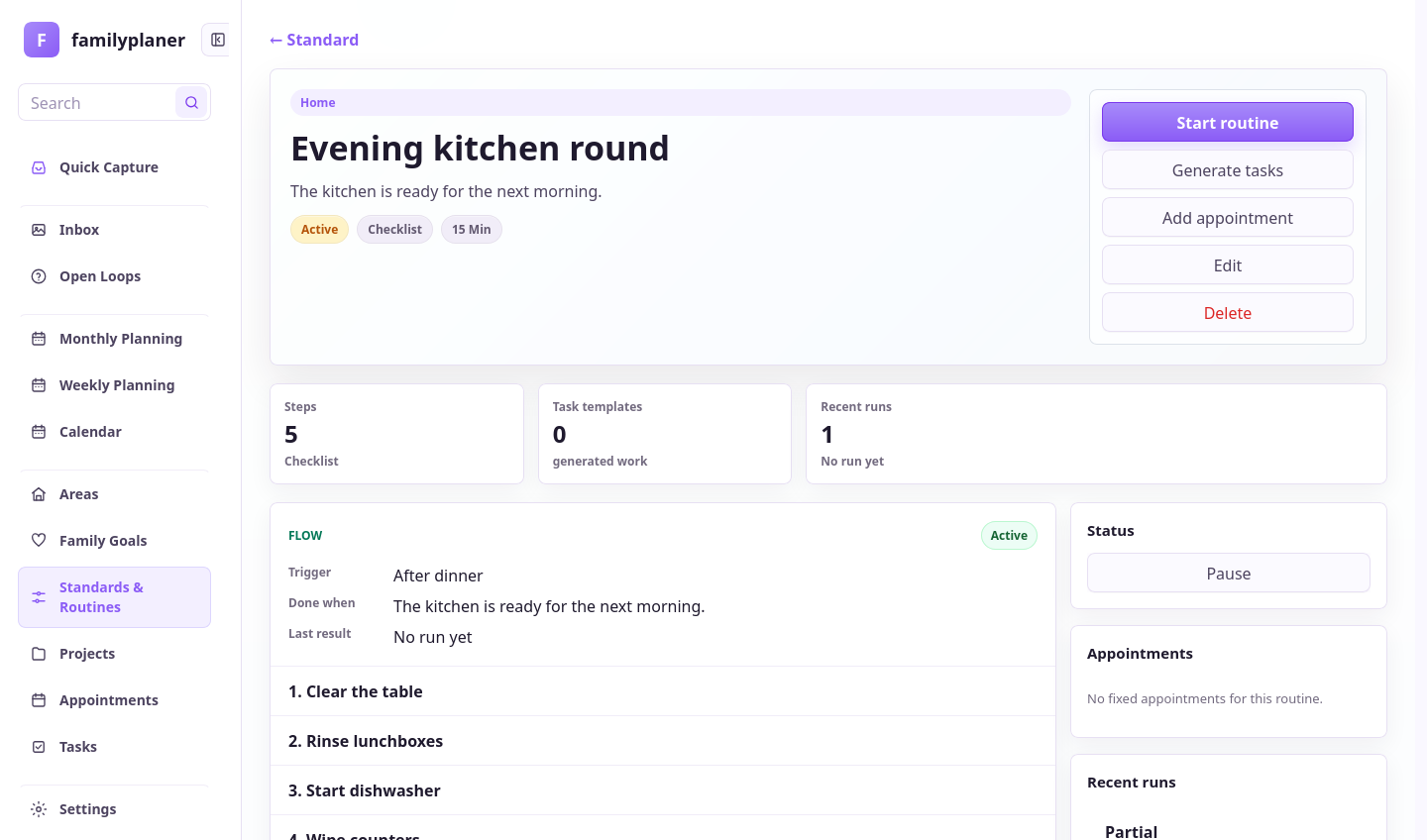
Routines hold recurring work together.

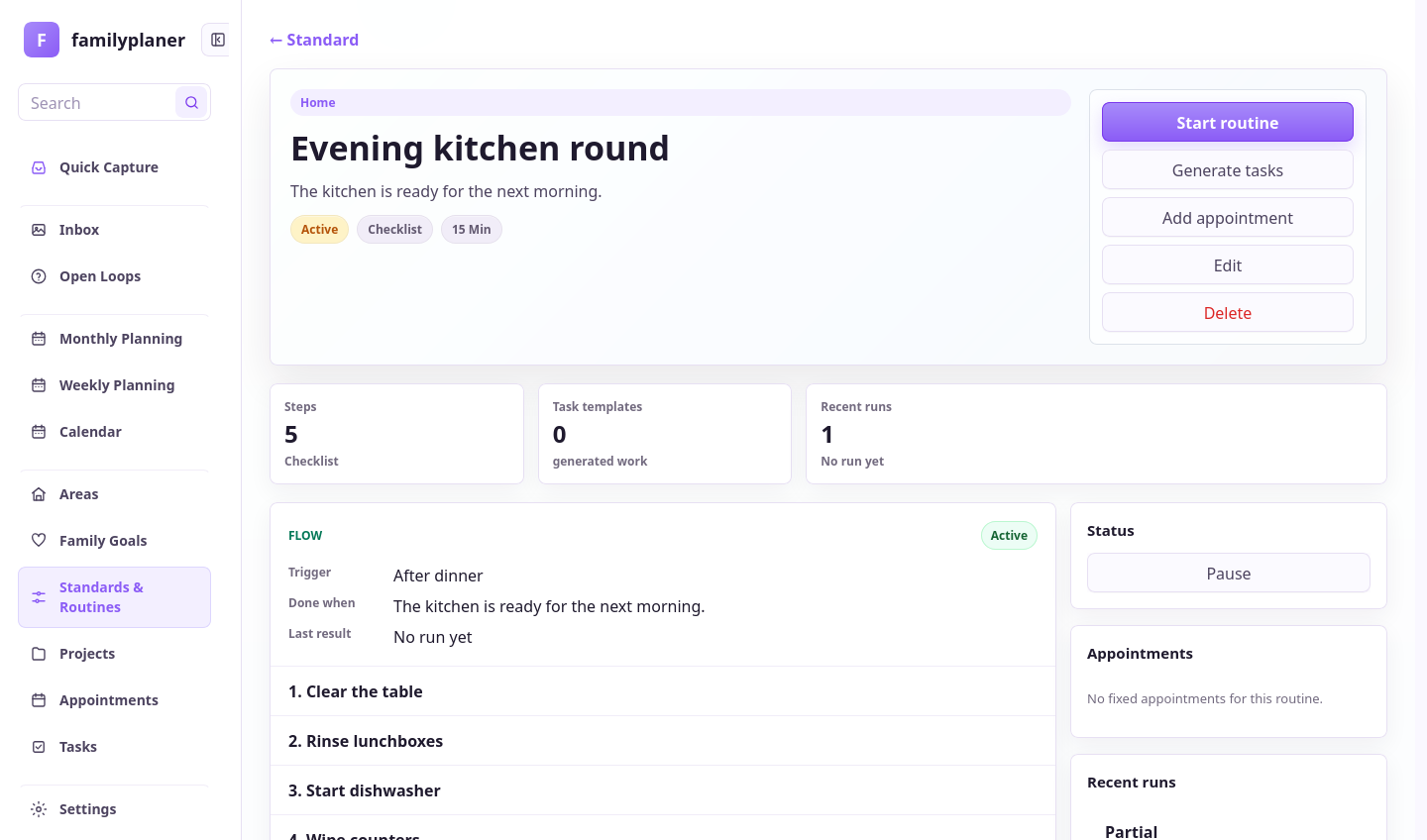
Routines are reusable step lists for things that keep returning: packing a bag, closing the kitchen, starting laundry. The agent helps turn vague expectations into clear flows.

Evening / Laundry hallway

The routine runs where the work happens.

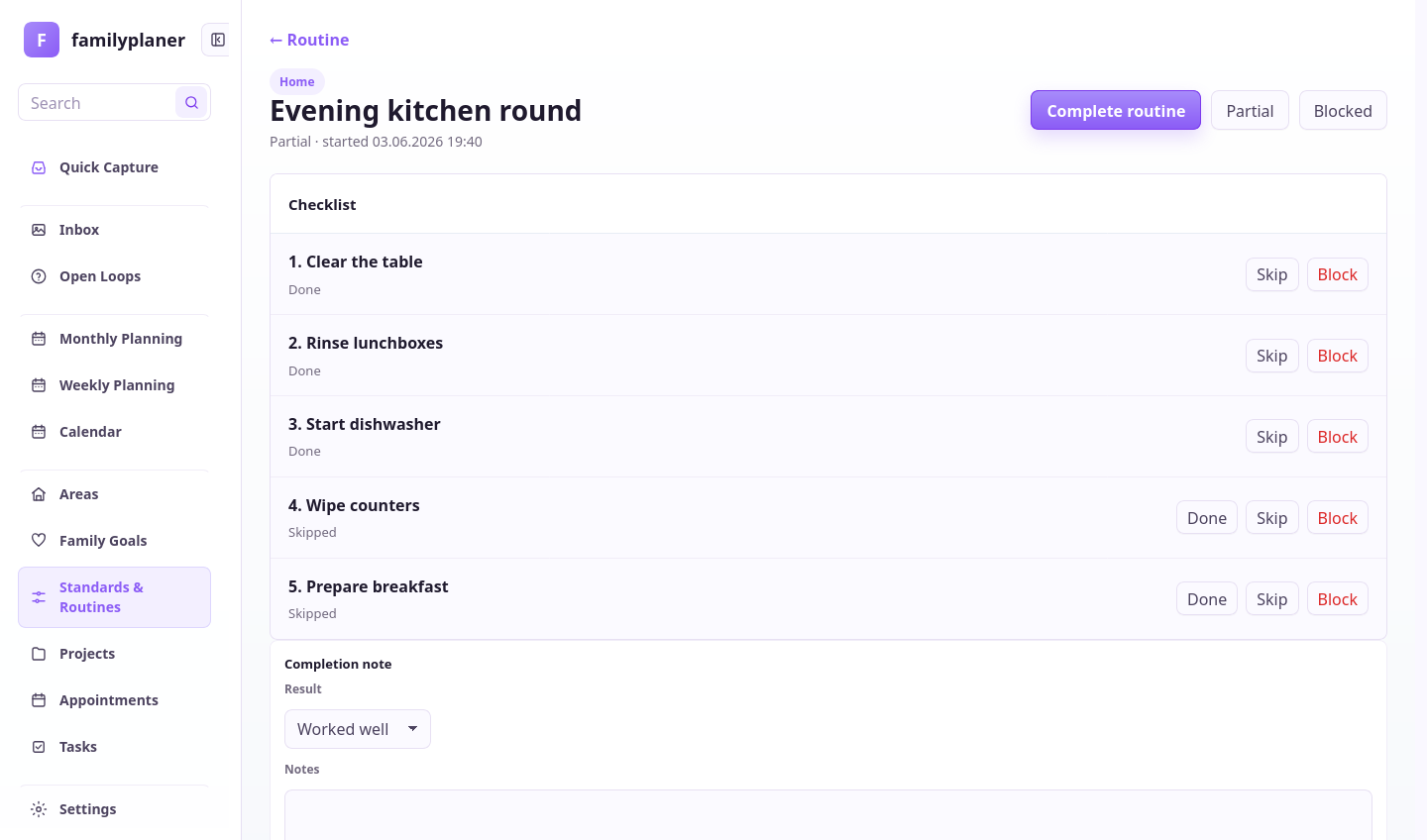
Lina drops sports clothes into the basket, Emil packs his school bag. Jonas does not have to read a long explanation; the routine shows one step after another. Anything skipped stays intentional.

A routine removes the daily renegotiation from recurring work.

Family using a routine in the laundry area with Familienplaner

Prompt for repetition

Describe the good flow once.

The agent can turn it into a routine that starts again later.

Build routine

Create an evening routine for school days: lunch boxes out, backpack checked, sports clothes washed, tomorrow reviewed briefly. Keep it short enough for kids to join.

The agent proposes clear steps that can be reused as a routine.

Chapter 7 app screens

Routines make repetition executable.

Recurring work gets steps, a run, and a finish.

Routine screenshot for recurring work

1 / Routine

Recurring work is saved.

The family does not explain the flow every time.

Routine screenshot with checklist

2 / Steps

Steps clarify expectations.

"Kitchen done" becomes a checkable list.

Routine run screenshot with completed and skipped steps

3 / Run

Partial completion can count.

Even a shortened run remains visible.

Step 8

Open loops protect unclear questions.

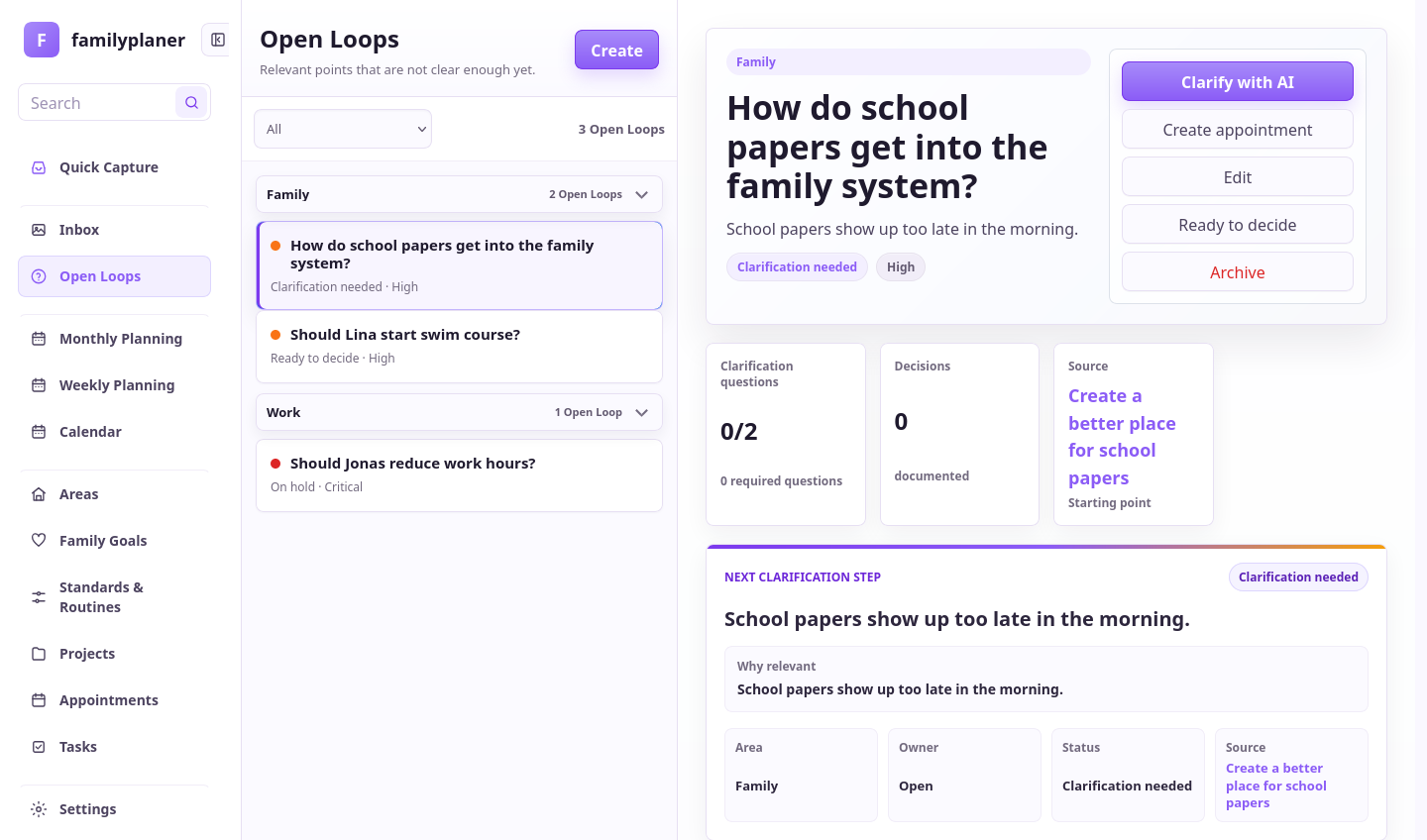
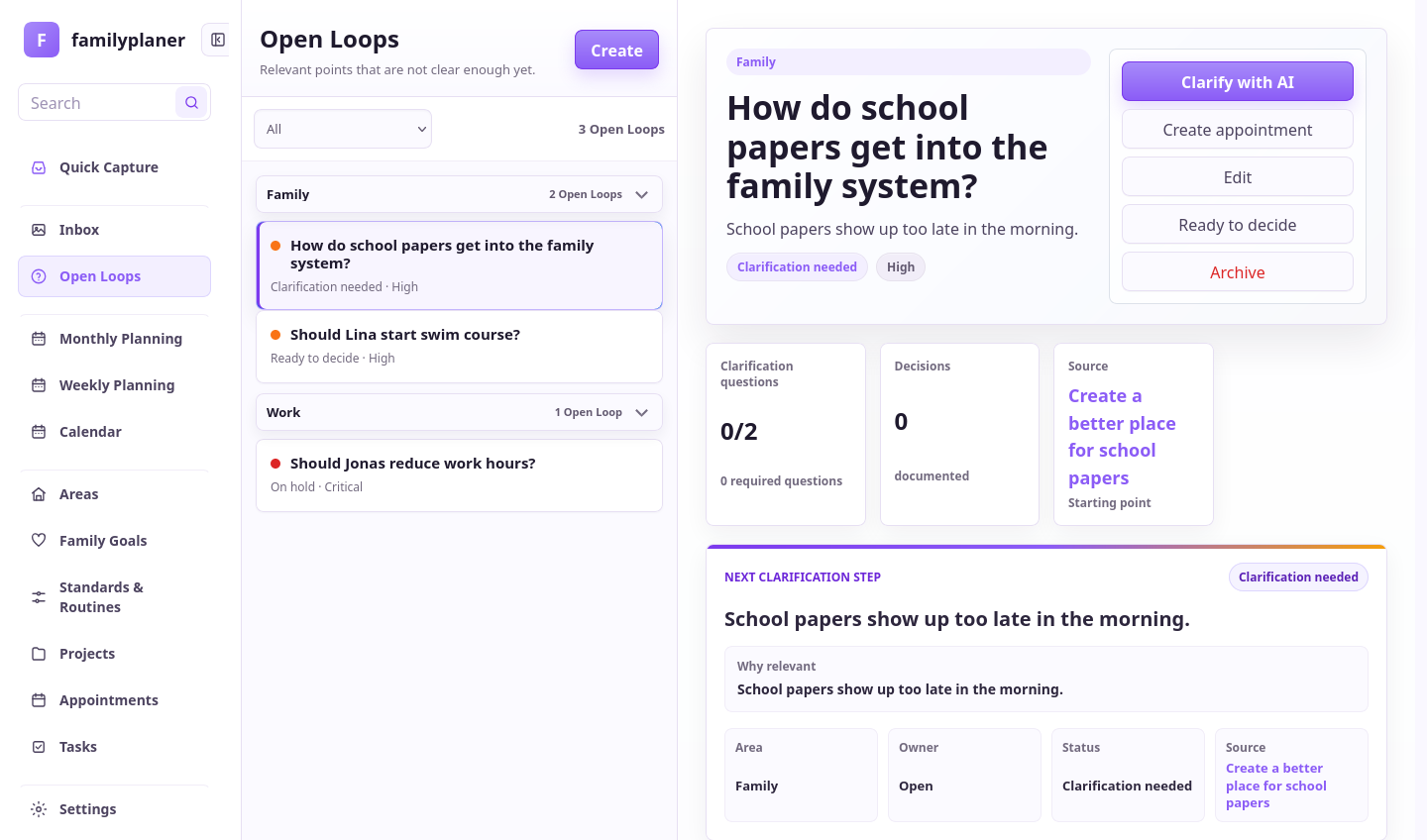
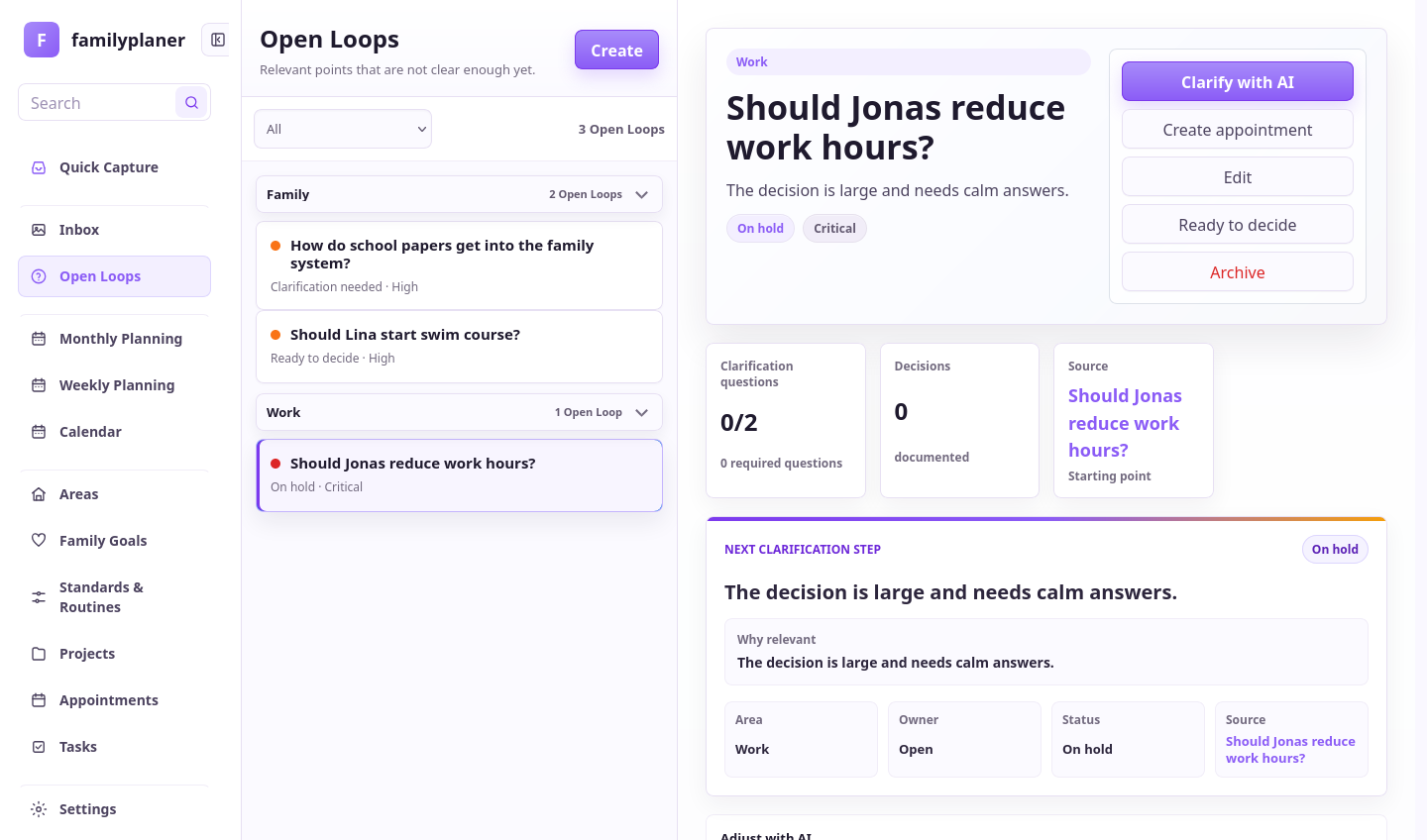
Not everything is immediately a task or appointment. An open loop records what still needs clarification, a decision, or an answer. The agent should preserve that uncertainty instead of turning it into premature work.

Playground / Sidewalk

The question stays visible until it has an answer.

On the way home, Mara remembers that cost and carpooling for swimming are still unclear. She tells the agent. Instead of creating a false signup task, the agent proposes a clarification question.

Good planning is allowed to say: we do not know yet.

Family saving an open question on the sidewalk with Familienplaner

Prompt for uncertainty

Say explicitly what is undecided.

That helps the agent propose a question, not an invented task.

Review later

We do not know yet whether Lina wants the swimming course. Keep cost, travel, and Lina's motivation as open questions and bring the decision back for review on Friday.

The agent proposes an open loop with clarification questions and a Friday review date.

Chapter 8 app screens

Open loops have their own place.

Questions stay visible until the family has enough information to decide.

Open-loop screenshot with a question

1 / Question

Unclear stays open.

The app does not force a false decision.

Open-loops screenshot with a queue

2 / Queue

Questions gather visibly.

Due and waiting questions stay in one place.

Open-loop screenshot with a parked decision

3 / Review

Big questions get a date.

The review date brings the open loop back when the family can decide.

Step 9

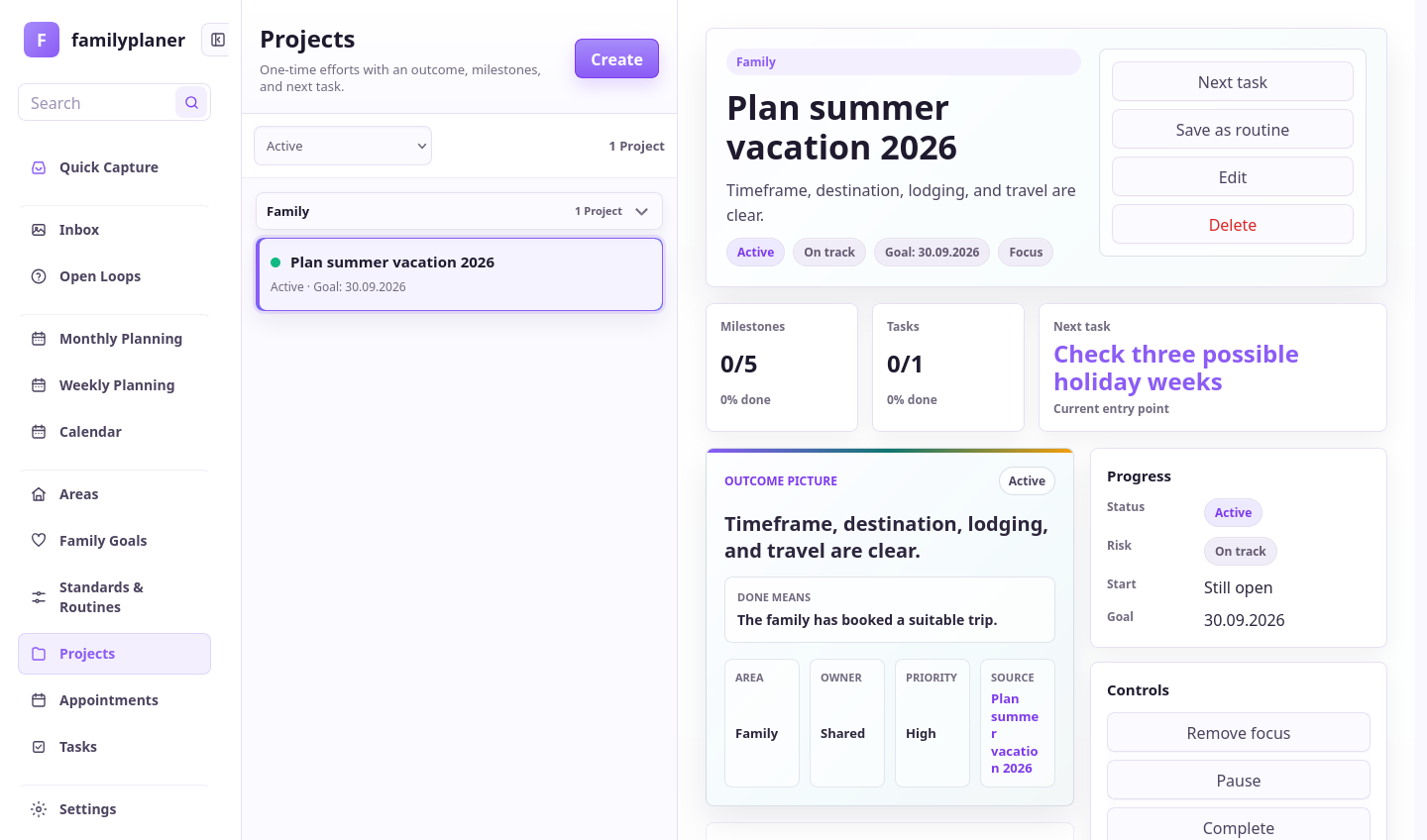
Projects hold larger outcomes together.

A project is for goals that do not fit into one task: vacation, school festival, school change, birthday. The agent collects the goal, decisions, milestones, and next actions so "someday" becomes concrete work.

Weekend / Living room

Loose wishes become a project.

The kids spread pictures and ideas on the floor. Jonas tells the agent what needs deciding. Wishes, criteria, and open questions become a project with one next action.

A project is the place for things that need more than one decision.

Family planning a larger project on the living room floor with Familienplaner

Prompt for projects

Name the goal, criteria, and next decision.

The agent can plan big topics better when the intended outcome is clear.

Start project

Start a summer vacation project. Collect the kids' wishes, budget question, travel dates, and the next decision. Create only one next task for this week.

The agent proposes project structure, open questions, and one small next step.

Chapter 9 app screens

Projects connect goal and next action.

Larger plans stay visible without overloading the day plan.

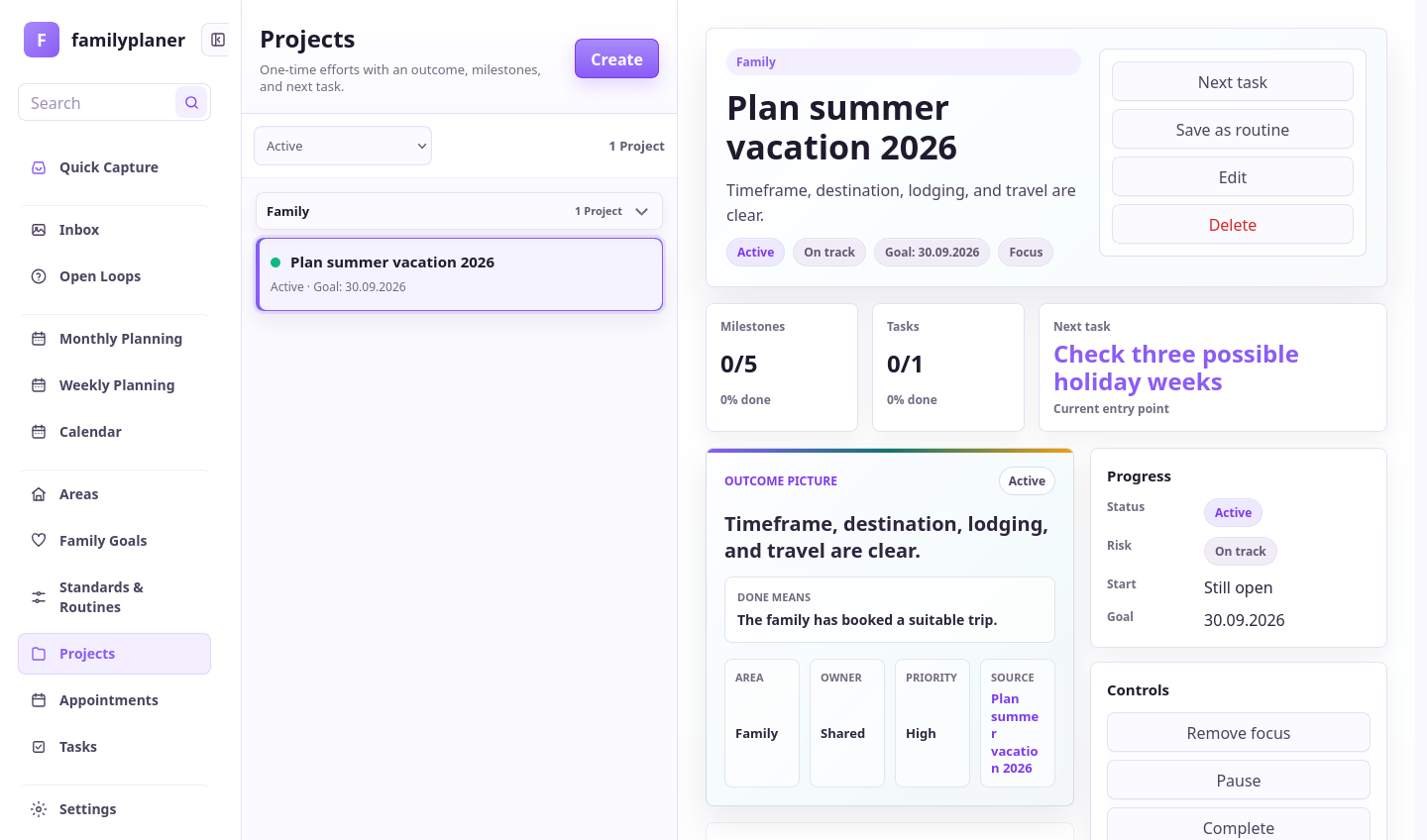
Project screenshot with vacation planning

1 / Project

Everything belongs in one place.

Goal, criteria, and next action stay together.

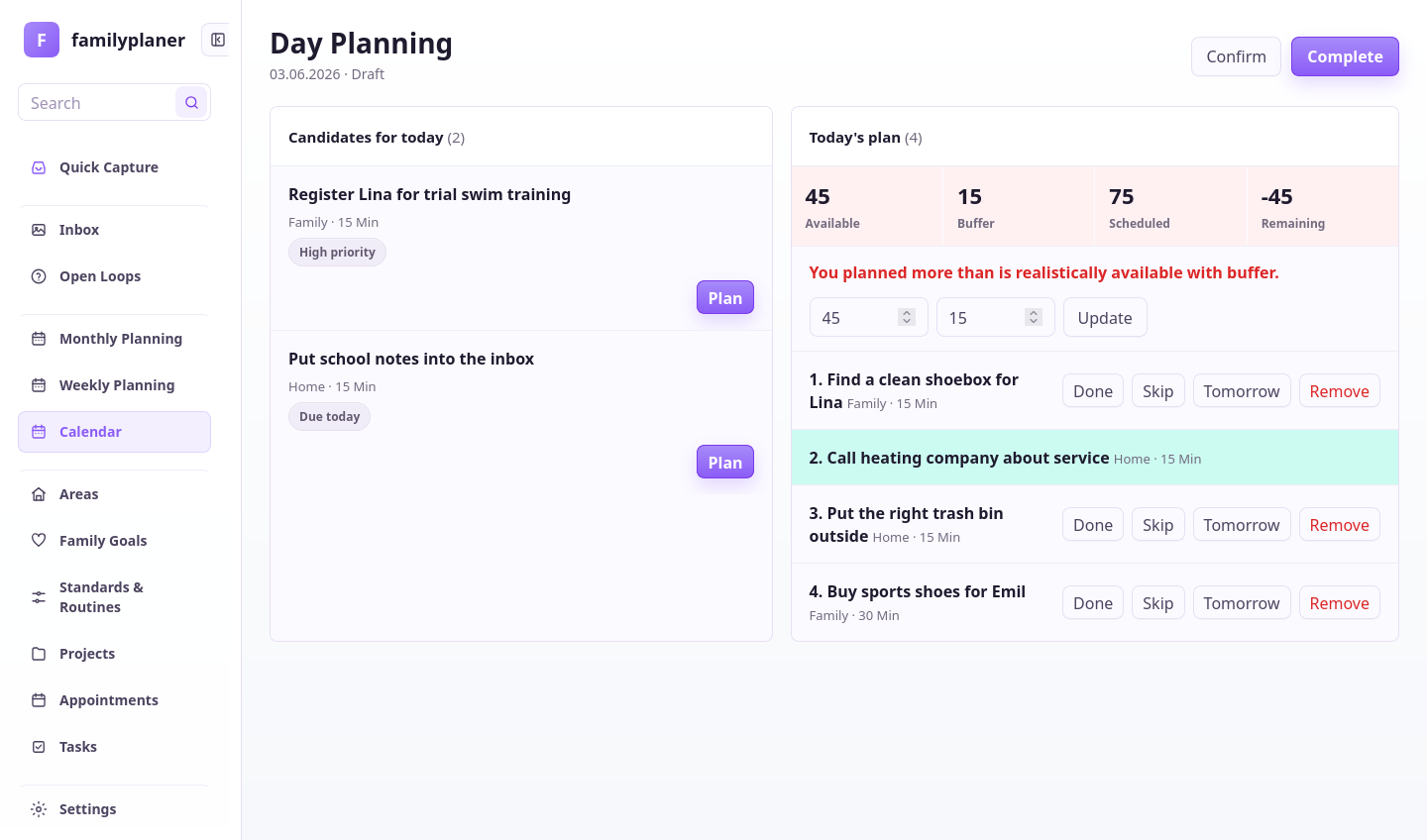
Day planning screenshot with a project task

2 / Task

Large goals become small.

The next step can fit the calendar.

Project screenshot with progress

3 / Finish

Progress stays reviewable.

Open decisions return to the project.

Step 10

The weekly compass shows what needs attention.

The weekly compass is the family's regular overview: what is in the inbox, which appointments create pressure, which tasks are stuck, which routines and open loops need a decision. The agent can prepare that view.

Transit stop / Sunday

Weekly planning fits into a short pause.

The family waits for the train. Mara asks the agent what will be tight next week. The weekly compass does not show every detail; it shows where the family should decide.

Weekly planning is not a meeting. It is a quick look at friction.

Family using the weekly compass at a transit stop with Familienplaner

Prompt for overview

Ask for attention, not completeness.

The agent should surface tight spots, open questions, and realistic next steps.

Check week

Prepare our next week. Show appointments with pressure, open questions, overdue tasks, and at most three load reducers that would really help.

The agent gathers attention points without filling the week with extra work.

Chapter 10 app screens

Compass connects the planning surfaces.

Week, month, and review help before everyday pressure appears at the last moment.

Weekly check screenshot in Familienplaner

1 / Weekly check

The week starts together.

The compass shows what needs attention.

Monthly planning screenshot with capacity

2 / Month

Tight spots appear earlier.

Large appointments and project work become visible ahead of time.

Day review screenshot for weekly planning

3 / Review

Leftovers improve the next plan.

What remains gets moved deliberately.

Step 11

Food is planning too.

Meals cost time, shopping, preparation, and attention. In Familienplaner they are not a side list. The agent can suggest meal ideas, cooking time, and responsibility that fit the calendar.

Grocery store / Aisle

The meal plan appears where the decision happens.

Lina stands in the aisle with her swim bag, Emil picks vegetables. Mara asks the agent for quick dinners on swim days. Food is planned with the same real time limits as appointments and tasks.

Meals fit better when cooking time is visible on the calendar.

Family planning meals in a grocery aisle with Familienplaner

Prompt for meals

Name days, constraints, and cooking time.

That creates meals that can actually fit the week.

Meal week

Plan dinners for swim days this week. Tuesday must be quick, Thursday can be prepped earlier, and Lina should choose one meal with us.

The agent proposes meals, cooking time, and calendar blocks.

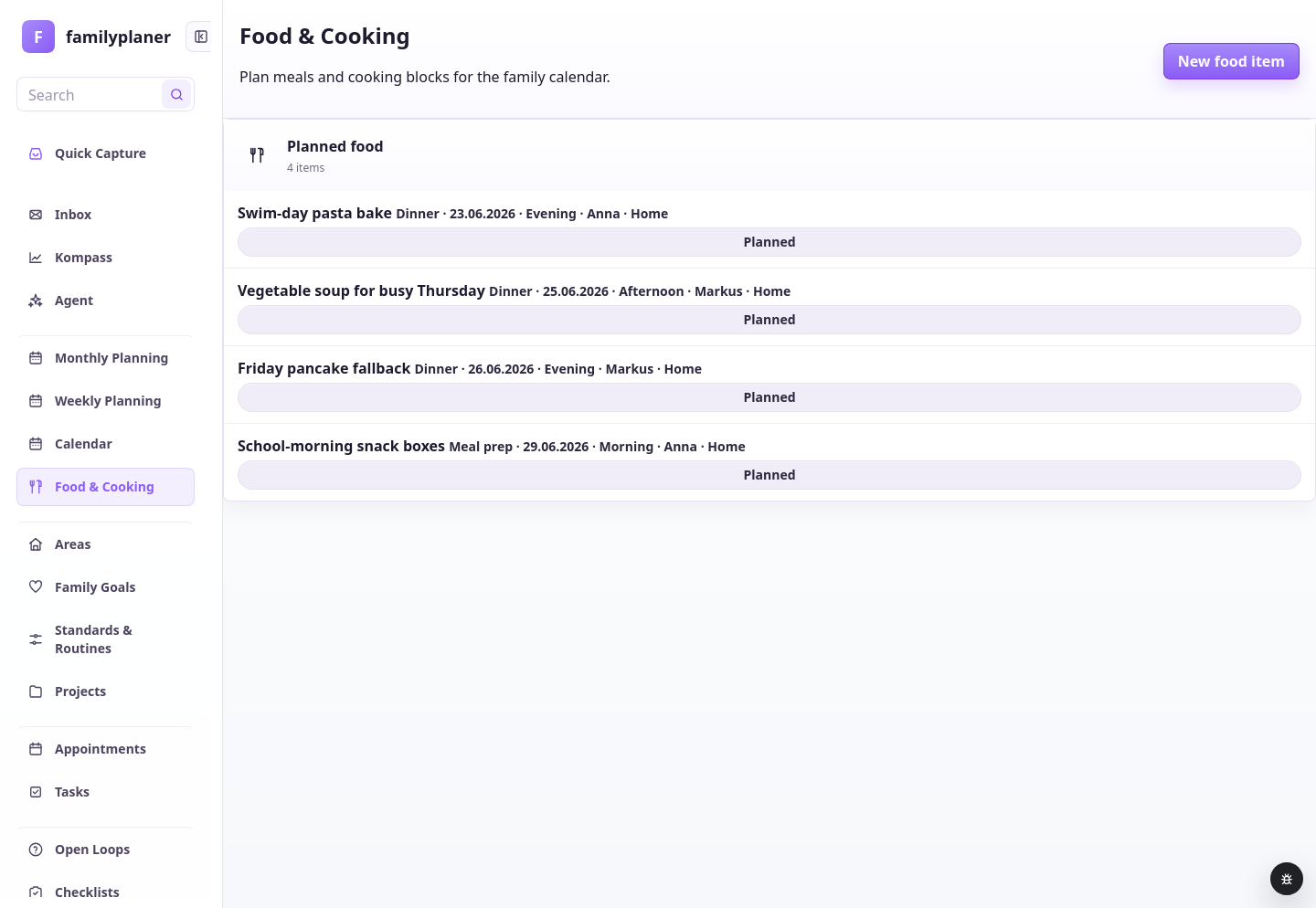
Chapter 11 app screens

Meals become planning objects.

Food can have a date, day bucket, responsible person, and duration.

Food and Cooking screenshot with planned meals

1 / Food

Food stays in the plan.

Meals remain connected to the week.

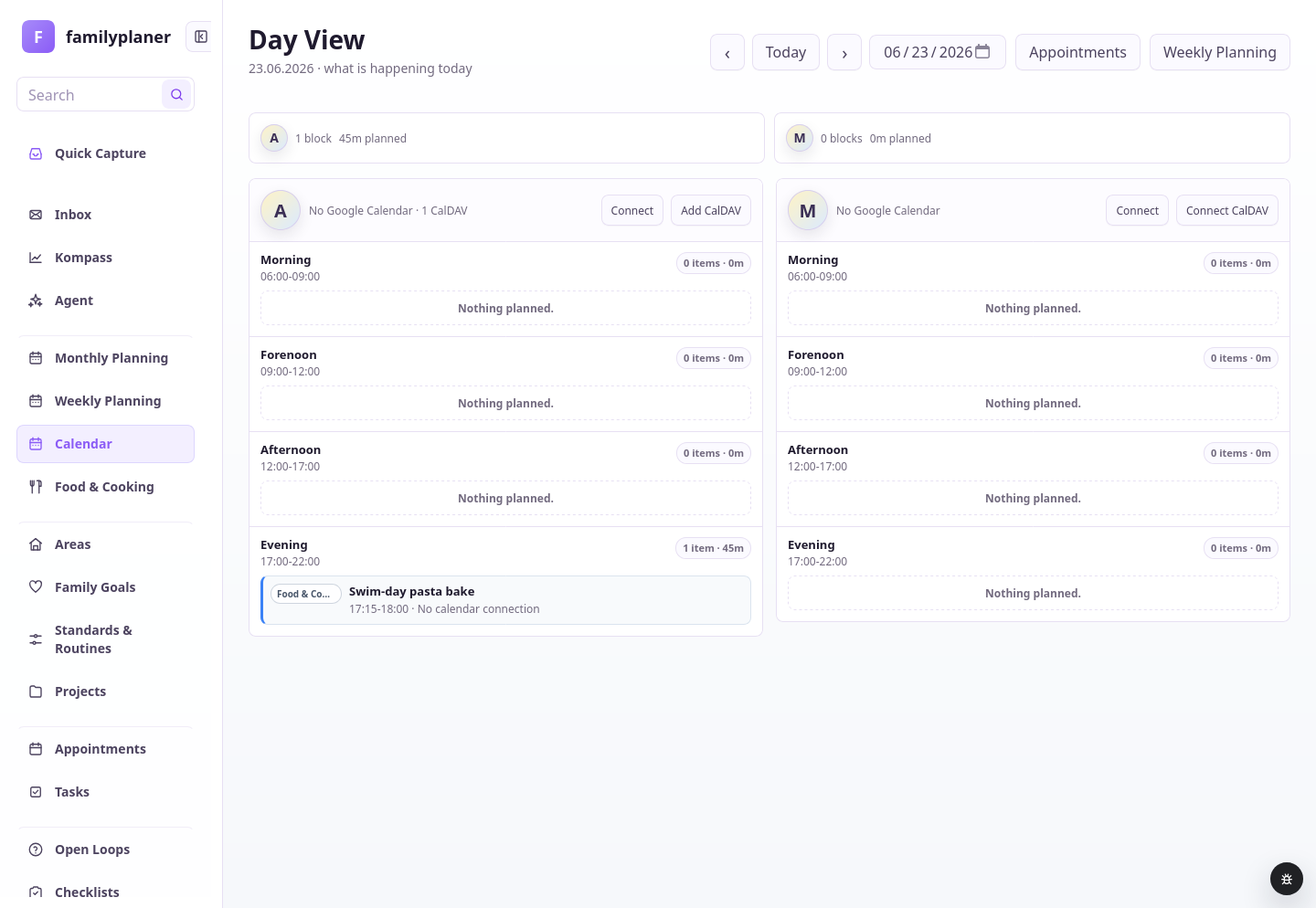
Calendar day screenshot with food block

2 / Calendar

Cooking takes time.

Cooking blocks visibly compete with appointments.

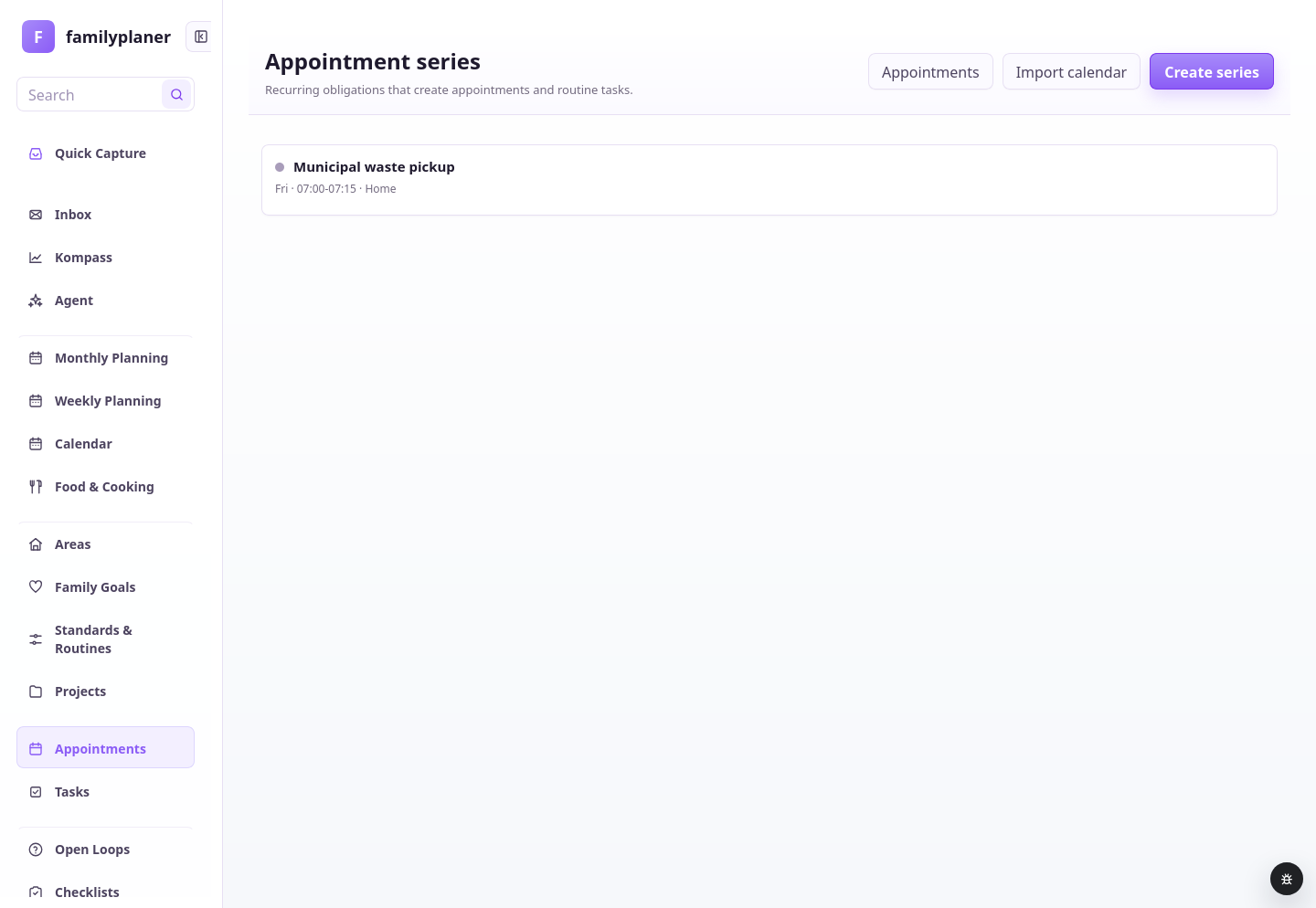
Recurring commitments screenshot

3 / Import

Recurring rhythms can join.

External schedules can create planning work too.

Step 12

Checklists make preparation reusable.

A checklist is for things that are similar every time: swim bag, overnight stay, trip, school event. The agent can turn a prompt into a list that can be checked, reset, and reused later.

Evening / Child's room

The bag gets packed with a plan.

Emil puts pajamas in the bag, Lina brings the toothbrush. Jonas opens the overnight checklist. The family does not have to rethink what might be missing every time.

A checklist stores preparation, not just a reminder.

Family packing in a child's room with a Familienplaner checklist

Prompt for lists

Say what the list will be reused for.

Good checklist prompts name the situation, child age, and boundaries.

Packing list

Create a reusable checklist for overnight stays at Grandma's. It should be readable for Emil and include only the things checked every time.

The agent proposes a short reusable checklist.

Chapter 12 app screens

Checklists stay at hand.

Preparation can be checked, reset, and repeated next time.

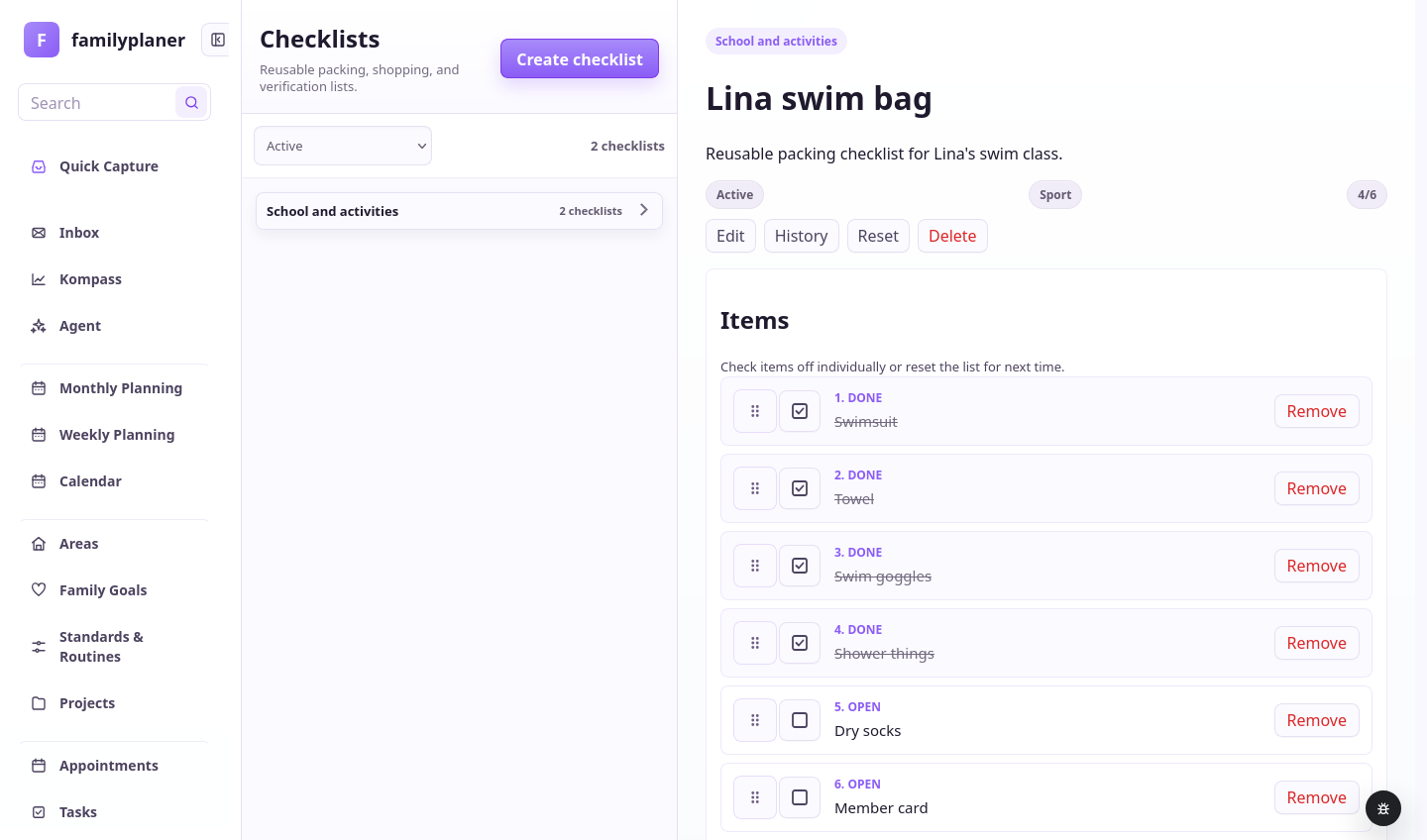
Checklist screenshot with swim bag

1 / Checklist

Steps become checkable.

The list guides preparation.

Agent screenshot with a checklist being created

2 / Agent

Lists can start from prompts.

The list stays reviewable before it is saved.

Screenshot with retry option

3 / Repeat

Unclear items can be reviewed later.

Errors and open items stay actionable.

Step 13

Connected calendars bring the outside world in.

Many fixed commitments start outside Familienplaner. Google Calendar and CalDAV connections bring those calendars in, so the agent does not plan blindly and family time is not double-booked.

Home / Work corner

The agent sees what is already fixed.

Mara connects the work calendar while Lina waits with her sports bag. After that, the agent can consider fixed commitments instead of proposing tasks in already-booked time.

Good planning knows the fixed appointments from outside.

Family connecting external calendars with Familienplaner

Prompt with calendar pressure

Mention outside calendars when they matter.

The agent can only account for what is connected or described.

Respect calendars

Plan homework times this week, but consider Jonas's work calendar and Lina's training. Do not place anything inside existing calendar blocks.

The agent treats external appointments as hard boundaries.

Chapter 13 app screens

Calendar connections protect time.

Imported and connected appointments help the agent find realistic times.

Calendar day screenshot with connected calendar status

1 / Calendar

Blocks show occupied time.

Family work appears beside fixed events.

Imported commitments screenshot

2 / Import

External rhythms come in.

Recurring commitments can be created from feeds.

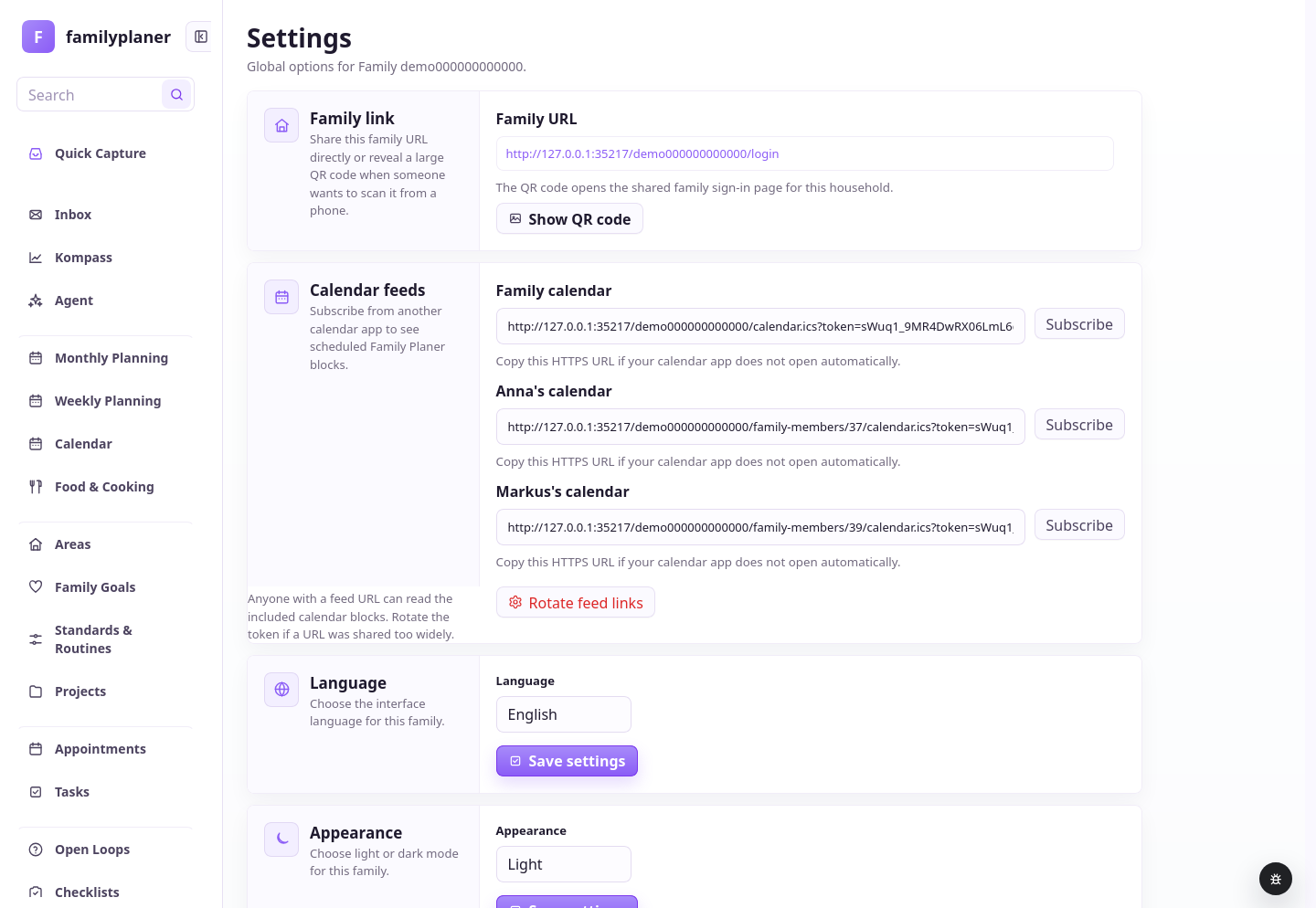
Settings screenshot with calendar feeds

3 / Feed

Calendars stay connected.

Settings show which calendars are available.

Step 14

Calendar feeds carry the plan outward.

Sometimes the family plan should be visible outside the app. Read-only feeds show family or member calendars in other calendar apps without allowing accidental changes there.

Morning / Kitchen counter

The plan appears where someone glances quickly.

Jonas checks the day on his phone while the kids eat breakfast and grab backpacks. The feed shows Familienplaner blocks in the usual calendar. The plan is still edited in Familienplaner.

Feeds share visibility, not responsibility for changes.

Family using an external calendar feed from Familienplaner in the morning

Prompt for visibility

Say who needs to see the plan.

The agent can explain which feed fits, even if setup in the calendar app remains manual.

Choose feed

I want to see Lina's planned tasks and appointments in my regular calendar. Explain which feed to use and what is read-only there.

The agent guides the family to the right feed view without overwriting external calendars.

Chapter 14 app screens

Feeds show the plan outside the app.

Family and member feeds give other calendars a read-only view.

Settings screenshot with calendar feed links

1 / Feeds

Links make the plan subscribable.

External calendars can read along without controlling the plan.

Calendar day screenshot with planned block

2 / Calendar

Blocks remain visible.

Planned work appears beside appointments.

Recurring commitments screenshot

3 / Import

In and out stay separate.

Imported appointments and exported feeds have different roles.

Step 15

AI Review cleans up older planning in a traceable way.

When many old tasks, projects, or open loops have grown over time, nobody has to inspect each one manually. AI Review checks records in the background and shows duplicates, missing owners, and stale content.

Evening / Sofa

Cleanup becomes manageable.

The kids are busy while Mara and Jonas review old tasks on the tablet. AI Review shows duplicates, stale wording, and uncertain cases. The family decides what belongs in the plan.

Automation helps when it stays traceable.

Parents reviewing AI Review findings on the sofa with Familienplaner

Prompt for cleanup

Set clear boundaries for cleanup.

Say which records to inspect and which cleanup limits apply.

Check old tasks

Review old open tasks for duplicates, missing owners, and things that are probably done.

AI Review gathers findings, status, and errors so the family can review them together.

Chapter 15 app screens

AI Review works in batches and stays visible.

Runs show progress, findings, and failed items.

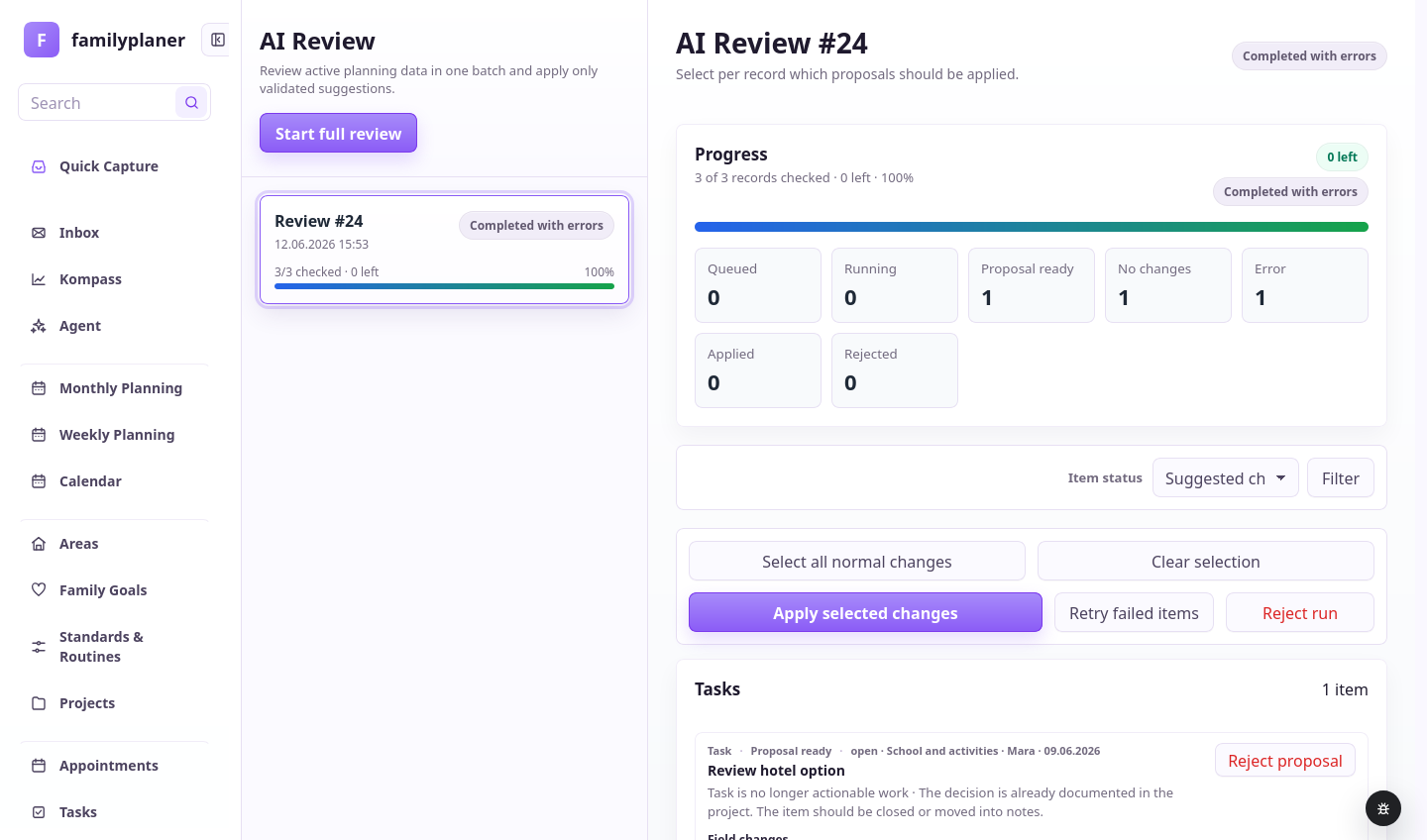
AI Review screenshot with completed run

1 / Review run

The run gathers findings.

AI Review keeps working in the background.

AI Review screenshot with selectable changes

2 / Changes

Changes are decided individually.

The family keeps only useful changes.

AI Review screenshot with retry option

3 / Retry

Errors stay actionable.

Failed records can be checked again.

Latest features

The agent now reaches more parts of the family plan.

The chapters use the same working style everywhere: ask naturally, attach context, and review the results calmly.

Food

Meals and cooking can be prepared.

The agent can prepare meal ideas, cooking times, and family roles around real appointments.

Calendars

Calendars can flow in and out.

Google Calendar, CalDAV, calendar feeds, and imported ICS appointments help show real time limits.

Agent

Prompts become visible actions.

Families describe goals, limits, and source material; the agent turns them into structured steps.

AI Review

Older planning can be checked in batches.

Review runs find cleanup opportunities and keep the cleanup visible.

Product promise

Ask first. Review the result. Use forms only when you need them.

Familienplaner connects agent, inbox, tasks, appointments, day planning, routines, open loops, projects, food, calendars, and review into one shared flow.

Prompts name goals and limits. Photos and files add context. Results stay reviewable. Forms edit details. Calendars protect real time. Review cleans up visibly.

Project screenshot showing vacation plan and next action

Working style

Agent and inbox use the same intelligence, but not the same working mode.

In the Agent menu, you write free-form and cross-plan requests. In the inbox, you review the suggestion for one specific thing and add what is still missing.
Day review screenshot with sorted end-of-day tasks